Enforcing Individual E-Invoice for Classification Code

Enforcing Individual E-Invoice for Classification Code

Under LHDN E-Invoice requirements, certain activities and transactions must be issued as Individual E-Invoices for each transaction, where consolidated E-Invoice submission is not permitted.
For these activities, taxpayers are required to obtain full buyer details for every transaction in order to issue an E-Invoice. As such, consolidated E-Invoices are not allowed, except for specific exceptions as outlined in Table 3.6 of the LHDN E-Invoice Specific Guideline.
Currently, the following activities or industry transactions are required to issue E-Invoices on a per-transaction basis:
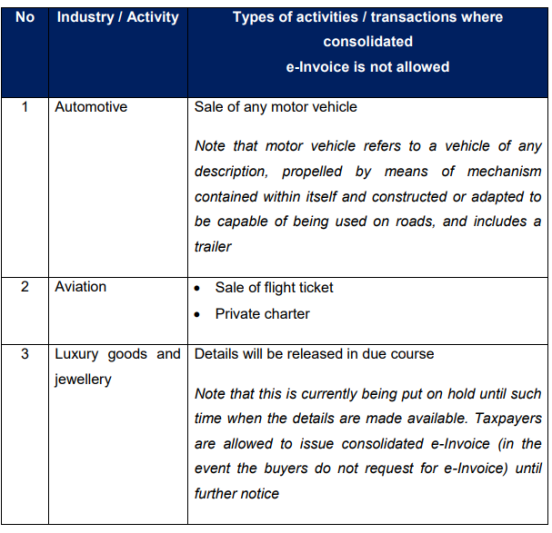
(If you are unsure which classification codes apply, we recommend consulting your tax agent)

Settings Location

The setting can be found in Xilnex Portal under:
Integration 1. Malaysia LHDN E-Invoicing 2. E-Invoice Settings 3. E-Invoice Profile Setup

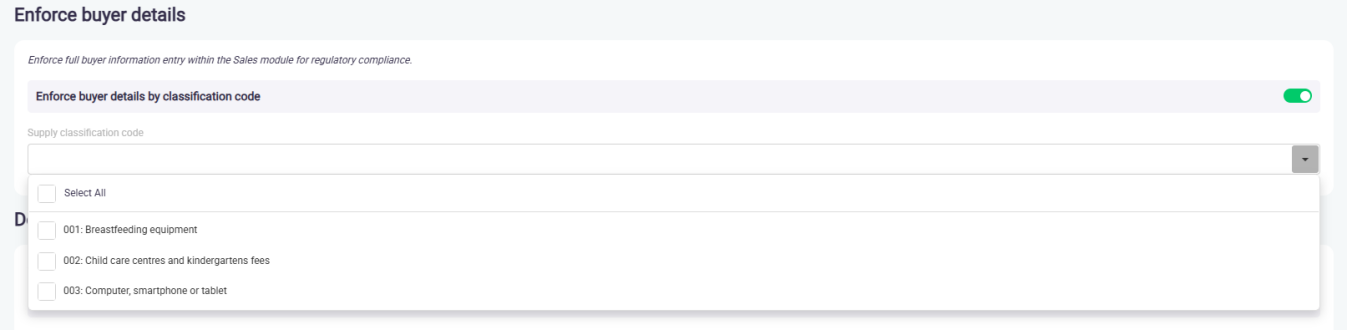
Section: Enforce Buyer Details

Setting Name: Enforce Buyer Details by Classification Code
Description

When enabled, the system will enforce Individual E-Invoice submission for sales transactions that contain items with the configured classification codes. Users may define which classification codes should trigger this enforcement.
If you are unsure which classification codes apply, we recommend consulting your tax agent.

Applicable Modules

This validation applies to the following modules:
  • Point of Sales
  • F&B Point of Sales
  • Sales Invoice
  • Sales Return

How the Validation Works

  • This validation is only applicable when the E-Invoice status is set to Active.
  • When the E-Invoice is Active and:
    • One or more sales items match the configured classification codes,
  • The system will:
    • Enforce Individual E-Invoice submission
    • Require full buyer information before the transaction can proceed.
  • If E-Invoice is set to Inactive, this validation will not be triggered.


Handling the Validation

When this validation is triggered, you may proceed using either of the following methods:
  • Update Buyer Info Use the Update Buyer Info option to manually enter the required buyer information.

    If the buyer does not have a specific TIN, please use the General TIN as follows:

    • Malaysian buyer
      Use General TIN: EI00000000010 together with NRIC / MyTentera details.

    • Foreign buyer
      Use General TIN: EI00000000020 together with Passport / MyPR / MyKAS details.


  • Select Existing Client with TIN Alternatively, select an existing client record that already contains a valid TIN, which will also satisfy the validation requirement.
Once the buyer information is completed, the sales transaction can proceed successfully.


Version and Released

Classic Version:

  • 2.16.77200.251217.3

  • 2.17.77200.251217.4

  • Above and Onward.

Release Date: 26 December 2025

    • Related Articles

    • How to Resolve Invalid E-Invoices in E-Invoicing Dashboard

      E-Invoices are validated directly by the LHDN Malaysia server. When a submission is marked as invalid, the server will return an error message (also known as the “Invalid Reason”). Taxpayers are expected to review this message and take corrective ...
    • Enforcing Individual E-Invoice Submission for Sales Above RM10,000

      Effective 1 January 2026, all single sales transactions with a total value exceeding RM10,000 must be submitted as an Individual e-Invoice. This enforcement is implemented to ensure compliance with LHDN e-Invoice regulatory requirements. Compliance ...
    • Generate E-Invoice Submission Manually

      Xilnex E-Invoicing is designed to run automatically once setup is completed. However, there are situations where you may need to manually generate an e-invoice to react promptly: Wrong setup or misconfiguration that prevented auto submission You ...
    • How to Set Up E-Receipt QR Code in Receipt Printing Format

      To improve accessibility, a QR code can be added to printed receipts. This QR code allows customers to quickly access the E-Receipt Portal, where they can view and claim their E-Invoice without needing to manually enter details. Open the printing ...
    • Enforce Buyer Details for E-Invoicing

      Individual E-Invoice for Specific Classification Codes When certain Classification Codes are assigned to an item or service, buyer details become mandatory during setup. In this case, the engine will prevent consolidation and issue an individual ...
    • Recent Articles

    • E-Receipt Portal User Guide: Retrieve Sales, Enter Buyer Details, and Submit to IRBM

      What is the E-Receipt Portal? The E-Receipt Portal is a web-based page provided by Xilnex that allows buyers (taxpayers) to claim a transaction and submit it to IRBM as an Individual E-Invoice for validation. Log in using the portal URL provided by ...
    • Generate E-Invoice Submission Manually

      Xilnex E-Invoicing is designed to run automatically once setup is completed. However, there are situations where you may need to manually generate an e-invoice to react promptly: Wrong setup or misconfiguration that prevented auto submission You ...
    • Production Release (2025-01-05)

      This release enhances e-Invoice compliance by enforcing Individual e-Invoice submission for high-value sales and selected classification codes. Release Date: 26 December 2025 Classic Release Classic Release Classic Version: 2.16.77200.251217.3 and ...
    • Enforcing Individual E-Invoice for Classification Code

      Under LHDN E-Invoice requirements, certain activities and transactions must be issued as Individual E-Invoices for each transaction, where consolidated E-Invoice submission is not permitted. For these activities, taxpayers are required to obtain full ...
    • CX Builder Use Case 1: Setup Signup Get Voucher/Points/Credit

      Use for loyalty app or lite applications, vouchers/points/credits will be auto generated to user after they successfully signup as members. Go to portal https://portal.xilnex.com/ Go to Customer Engagement>Customer Engagement Platform>Customer ...
    • Popular Articles

    • Basic - How to create a voucher-coupon

      Voucher and coupon definition Voucher can be generated in bulk and can be used once Coupon can only be created one at a time (reusable code) and can be use multiple times Pre-voucher / coupon setup There are 2 things need to be prepared before we can ...
    • Understanding DuitNow QR Payment in ClassicPOS

      Introduction This document introduces the DuitNow QR payment feature available in the Xilnex Retail POS, enabling merchants to accept payments conveniently through Malaysia's national QR payment standard. The integration of DuitNowQR simplifies the ...
    • Basic - How to change custom cost to another branch that don’t have custom cost

      Change custom cost to another branch that don’t have custom cost 1. Get the item list from the location with custom cost (Item Code, Name, Custom Cost) 2. Make sure the Show Location Price are selected 3. Export the item list in Excel 4. The file ...
    • Intermediate - How to Bill & Post to Sales from Transfer Note

      1.0 Purpose A bill is required from transfer note when an inventory transfer involves financial transactions, cost allocation, or compliance with tax and accounting regulations. It is used when stock is moved between outlets that operate as separate ...
    • Basic - How to enable E-Receipt Portal and QR Code Setup on Printing format in Xilnex

      Enable E-Receipt Portal Enable the E-receipt functionality Once Enabled, you will be getting the E-Receipt portal link Continue under Theme & Styling, enabled for the E-Invoice (LHDN) You can customize the look and feel of the E-Receipt portal ...