Creating and Managing a User Role

Creating and Managing a User Role

What are User Roles?

User roles define a specific set of responsibilities and permissions assigned to a person or group within the organization. They determine what actions a user can perform and what information they can access, ensuring that each individual has the appropriate level of access for their tasks.
Notes
This article also covers managing user roles, including creating, updating, and deleting them


Managing User Roles


1. Go to System Configuration from the menu bar.
2. Select User Management.
3. Choose User Role.
  1. Create: Add a new user role.
  2. Edit: Add or remove usernames from an existing role.


How to Create a User Role

1. On the same page, find the green buttoon [NEW] at the top-right corner.
2. A form will appear displaying all usernames currently in the system.
3. Enter a name for the new user role. 
Info
Idea
Examples of user roles include CashierManager, and Admin.
4. Select the usernames to be assigned to this role.
5. Click [SAVE] to finalize the creation.
Warning
The user role name cannot be changed later.


Update an Existing User Role

1. In the User Role page, find the user role, double-click it, or click [EDIT].

2. The system will display the currently assigned username under the selected role.
3. Add or remove username as needed, then save your changes.


Deleting a User Role

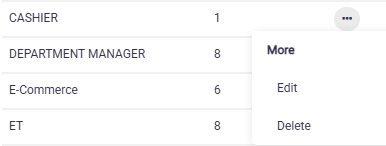
1. . In the User Role page, select the role and click [DELETE].
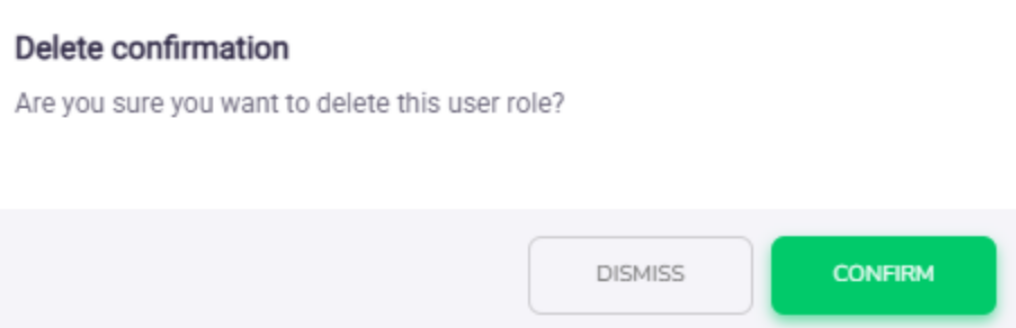
2. A confirmation message will appear.
Idea
Each roles may have different permission level, click here to learn how to configure the permissions.
    • Related Articles

    • Creating a New Username in Xilnex Portal

      How to Create a New Username in Xilnex Portal A new username can only be created by an existing user within the company. (Rest assured, permission settings are in place to control who has the privilege to create accounts, preventing any unauthorized ...
    • Managing a User Role Permission Settings

      What is User Role Permission Setting User Role Permission defines the access rights and actions that a role can perform within the X3 Portal. By configuring these permissions, administrators can control which features, modules, or data each role is ...
    • Creating An SMS Campaign

      Requirement Xilnex Username (with Xilnex Portal access granted) SMS account Where to get it? Kindly send your enquiry to billing@xilnex.com (charges may incur). How to create an SMS Campaign? SMS Marketing 1. Navigate to Xilnex Portal > Customer ...
    • Managing Loyalty Clients: Deactivation & Deletion

      Overview This guide walks you through two distinct client management actions within the Loyalty module — Deactivating and Deleting a client record. Understanding the difference between these two actions is critical before proceeding, as they carry ...
    • Creating a New Store in Xilnex Portal

      How to Create a New Store in Xilnex Portal To create, edit, or delete a store, go to [System Configuration] in the menu bar and select [Store Management]. The system will display a list of stores accessible to your account. Create a New Store 1. ...
    • Recent Articles

    • Guidelines to Set Up Promotion for Walk-in (System Default)

      Guidelines to Set Up Promotion for Walk-in (System Default) Previously, the system did not have a specific indicator for walk-in customers. As a result, all promotion rules applied equally to all customer types, including walk-in customers. However, ...
    • How to Update Client Record in Classic POS

      Overview Updating client information is an essential function in ClassicPOS, enabling users to maintain and update existing client records. This ensures that client data remains accurate and up to date for daily operations, reporting, and effective ...
    • How to Create a New Client in Classic POS

      Overview This function is created to centralize and manage client information in ClassicPOS. The Client Form allows users to create, update, and maintain customer records, supporting the management of personal information, transaction history, ...
    • POS Hold Bill Feature (Coming Soon!)

      Hold Bill Feature – Retail POS 1. Overview The Hold Bill feature allows cashier to temporarily save an ongoing transaction and resume it later. ✅ Enabled by default for Retail POS Designed to improve queue efficiency Prevents loss of sales when ...
    • OAuth Project & Client Permission Management

      Overview The OAuth Project & Client Permission module controls which roles can access, configure, and manage OAuth projects and client credentials within the system. Permissions are managed under System Configuration > User Roles Permission > All ...
    • Popular Articles

    • Basic - How to create a voucher-coupon

      Voucher and coupon definition Voucher can be generated in bulk and can be used once Coupon can only be created one at a time (reusable code) and can be use multiple times Pre-voucher / coupon setup There are 2 things need to be prepared before we can ...
    • Understanding DuitNow QR Payment in ClassicPOS

      Introduction This document introduces the DuitNow QR payment feature available in the Xilnex Retail POS, enabling merchants to accept payments conveniently through Malaysia's national QR payment standard. The integration of DuitNowQR simplifies the ...
    • Basic - How to change custom cost to another branch that don’t have custom cost

      Change custom cost to another branch that don’t have custom cost 1. Get the item list from the location with custom cost (Item Code, Name, Custom Cost) 2. Make sure the Show Location Price are selected 3. Export the item list in Excel 4. The file ...
    • Intermediate - How to Bill & Post to Sales from Transfer Note

      1.0 Purpose A bill is required from transfer note when an inventory transfer involves financial transactions, cost allocation, or compliance with tax and accounting regulations. It is used when stock is moved between outlets that operate as separate ...
    • Basic - How to enable E-Receipt Portal and QR Code Setup on Printing format in Xilnex

      Enable E-Receipt Portal Enable the E-receipt functionality Once Enabled, you will be getting the E-Receipt portal link Continue under Theme & Styling, enabled for the E-Invoice (LHDN) You can customize the look and feel of the E-Receipt portal ...