Managing a User Role Permission Settings
What is User Role Permission Setting
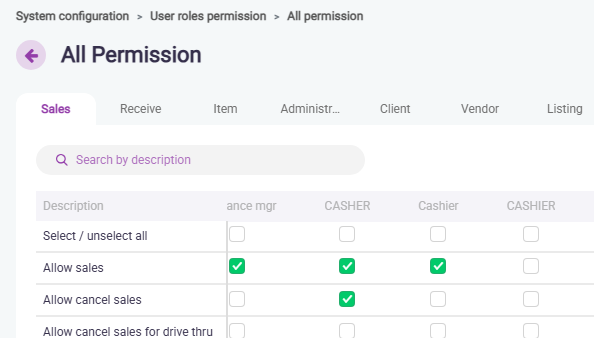
User Role Permission defines the access rights and actions that a role can perform within the X3 Portal. By configuring these permissions, administrators can control which features, modules, or data each role is allowed to view or manage.”
How to Edit a User Role Permission?
1. Go to [System Configuration] from the menu bar.
2. Select [User Role Permission].
3. Adjust the permissions as needed and save your changes.
Related Articles
Creating and Managing a User Role
What are User Roles? User roles define a specific set of responsibilities and permissions assigned to a person or group within the organization. They determine what actions a user can perform and what information they can access, ensuring that each ...
Creating a New Username in Xilnex Portal
How to Create a New Username in Xilnex Portal A new username can only be created by an existing user within the company. (Rest assured, permission settings are in place to control who has the privilege to create accounts, preventing any unauthorized ...
Resetting MFA using Superadmin Account
This guide is intended for users who: Entered an invalid or inaccessible email during the MFA setup, causing OTP delivery to fail. No longer have access to their previously registered email to receive the OTP. Need to reset MFA for themselves or team ...
Importing Usernames in Xilnex Portal
What is User Import? User Import allows you to add, update, or manage multiple users in bulk rather than handling them one by one. This feature is especially useful for onboarding new employees, migrating data, or making large-scale updates to user ...
Updating Username Information in Xilnex Portal
How to Update/Edit a Username in Xilnex Portal 1. Go to [System Configuration] from the menu bar. 2. Select [User Management]. 3. Choose [User List]. 4. Locate the username from the list using search or filters. 5. Double-click the username or click ...
Recent Articles
How to Stop Xilnex E-Invoicing
Scenarios Requiring Xilnex E-Invoicing Deactivation Deactivate Xilnex E-Invoicing when a business falls below mandatory thresholds or ceases operations, ensuring compliance with IRBM guidelines while avoiding unnecessary module activity. This ...
Xilnex E-Invoicing Document Split
Type Descriptions Product Xilnex E-Invoicing New Features E-Invoice Document Splitting Document Splitting Function Type Toggle Configuration E-Invoice Settings Required DB Upgrade No Release Date 13 August 2025 Background When a generated payload ...
Connecting KDS 2.0 to POS
Xilnex ClassicPOS Important Notice: As of now, in order to use KDS2.0, Classic POS version must be at least version 2.16 July 2025 and above. 1. In System Configuration > select Device Configuration > under This Machine > look for Kitchen Display ...
Congiure a Client KDS - Connect to a Host KDS
KDS Client A KDS Client Device in Xilnex KDS 2.0 is a display screen (such as a tablet, monitor, or smart TV) located at a specific kitchen station (e.g., Grill, Bar, or Cold Station). Its primary function is to receive and display orders sent from ...
Configure A Host KDS Device
A Host KDS in Xilnex KDS 2.0 is the designated central hub device responsible for synchronizing and managing the entire kitchen network. It acts as the primary authority, ensuring that all orders from the POS system are correctly distributed to ...
Popular Articles
Basic - How to create a voucher-coupon
Voucher and coupon definition Voucher can be generated in bulk and can be used once Coupon can only be created one at a time (reusable code) and can be use multiple times Pre-voucher / coupon setup There are 2 things need to be prepared before we can ...
Basic - How to change custom cost to another branch that don’t have custom cost
Change custom cost to another branch that don’t have custom cost 1. Get the item list from the location with custom cost (Item Code, Name, Custom Cost) 2. Make sure the Show Location Price are selected 3. Export the item list in Excel 4. The file ...
Intermediate - How to Bill & Post to Sales from Transfer Note
1.0 Purpose A bill is required from transfer note when an inventory transfer involves financial transactions, cost allocation, or compliance with tax and accounting regulations. It is used when stock is moved between outlets that operate as separate ...
Basic - How to enable E-Receipt Portal and QR Code Setup on Printing format in Xilnex
Enable E-Receipt Portal Enable the E-receipt functionality Once Enabled, you will be getting the E-Receipt portal link Continue under Theme & Styling, enabled for the E-Invoice (LHDN) You can customize the look and feel of the E-Receipt portal ...
Importing Usernames in Xilnex Portal
What is User Import? User Import allows you to add, update, or manage multiple users in bulk rather than handling them one by one. This feature is especially useful for onboarding new employees, migrating data, or making large-scale updates to user ...