Creating a New Store in Xilnex Portal

Creating a New Store in Xilnex Portal

How to Create a New Store in Xilnex  Portal

To create, edit, or delete a store, go to [System Configuration] in the menu bar and select [Store Management].


The system will display a list of stores accessible to your account.


Create a New Store

1. Click the green [NEW] button at the top-right.
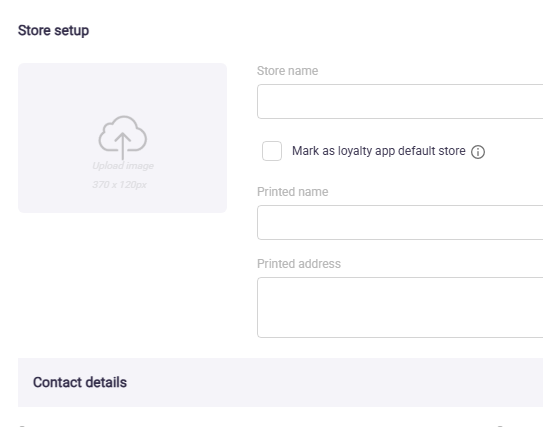

2. Fill in the required store information.

3. Click [SAVE].

4. The new store will appear in the store list.

    • Related Articles

    • Creating a New Username in Xilnex Portal

      How to Create a New Username in Xilnex Portal A new username can only be created by an existing user within the company. (Rest assured, permission settings are in place to control who has the privilege to create accounts, preventing any unauthorized ...
    • Deleting a Store in Xilnex Portal

      How to Delete a Store in Xilnex Portal 1. To delete a store, go to [System Configuration] in the menu bar and select [Store Management]. 2. Select the store you want to delete. 3. Select [DELETE]. Important Note: Once a store is deleted, this action ...
    • Updating Store Details in Xilnex Portal

      How to Update Store Details in Xilnex Portal 1. To update store details, go to [System Configuration] in the menu bar and select [Store Management]. 2. Double-click the store or select more and click [EDIT]. 3. The existing store information will ...
    • Selecting and Changing a Store in Xilnex Portal

      Store Selection After logging in, a list of permitted store will appear. Select an store to proceed. Mark as Default Store Marking an outlet as the default store will automatically load it after log in, skipping the store selection screen. Changing ...
    • Updating Username Information in Xilnex Portal

      How to Update/Edit a Username in Xilnex Portal 1. Go to [System Configuration] from the menu bar. 2. Select [User Management]. 3. Choose [User List]. 4. Locate the username from the list using search or filters. 5. Double-click the username or click ...
    • Recent Articles

    • How to add Checkout Disclaimer Message into your Live Order

      Overview The Checkout Disclaimer Message feature allows you to display a custom message to your customers at the checkout page before they complete their payment. This helps set clear expectations and reduces customer complaints about order ...
    • Production Release (2026-02-11)

      Release several bug fixes and feature for LiveOrder including some feature changes for LiveKiosk Live Order v1.0.623.0211 Live Kiosk v1.0.623.0211 Live Order v1.0.623.0211 **Bugfixes** - Fixed checkout disclaimer display not respecting outlet-level ...
    • Production Release (2026-01-30)

      Release several bug fixes for LiveOrder Live Kiosk v1.0.622.0129 Live Kiosk v1.0.622.0129 Bugfixes - Fixed item modifier description overflow so long modifier text no longer breaks the layout. - Fixed an issue where Thai phone numbers were being ...
    • Production Release (2026-01-21)

      Release several bug fixes for LiveOrder and LiveKiosk LiveOrder v1.0.621.0121 LiveKiosk v1.0.621.0121 LiveOrder v1.0.621.0121 Bug Fixes - Resolved issue allowing voucher payments without requiring a ClientID in the user interface. - Enhanced modifier ...
    • Production Release (2026-01-14)

      Quick release for changes to Live Order only LiveOrder v1.0.620.0114 LiveOrder v1.0.620.0114 Features - Add function to add Pre-Payment message
    • Popular Articles

    • Basic - How to create a voucher-coupon

      Voucher and coupon definition Voucher can be generated in bulk and can be used once Coupon can only be created one at a time (reusable code) and can be use multiple times Pre-voucher / coupon setup There are 2 things need to be prepared before we can ...
    • Understanding DuitNow QR Payment in ClassicPOS

      Introduction This document introduces the DuitNow QR payment feature available in the Xilnex Retail POS, enabling merchants to accept payments conveniently through Malaysia's national QR payment standard. The integration of DuitNowQR simplifies the ...
    • Basic - How to change custom cost to another branch that don’t have custom cost

      Change custom cost to another branch that don’t have custom cost 1. Get the item list from the location with custom cost (Item Code, Name, Custom Cost) 2. Make sure the Show Location Price are selected 3. Export the item list in Excel 4. The file ...
    • Intermediate - How to Bill & Post to Sales from Transfer Note

      1.0 Purpose A bill is required from transfer note when an inventory transfer involves financial transactions, cost allocation, or compliance with tax and accounting regulations. It is used when stock is moved between outlets that operate as separate ...
    • Basic - How to enable E-Receipt Portal and QR Code Setup on Printing format in Xilnex

      Enable E-Receipt Portal Enable the E-receipt functionality Once Enabled, you will be getting the E-Receipt portal link Continue under Theme & Styling, enabled for the E-Invoice (LHDN) You can customize the look and feel of the E-Receipt portal ...