Setting Up Credit Card Terminal in Xilnex ClassicPOS

Setting Up Credit Card Terminal in Xilnex ClassicPOS

Introduction

This guide explains how to configure and integrate credit card terminals with the POS system. The integration ensures smooth communication between the POS and payment devices, helping businesses process transactions securely and efficiently.

With this setup, you can:

  • Connect the POS system to supported credit card terminals.

  • Automate payment posting to reduce errors and reconciliation delays.

  • Support multiple terminal models for different business needs.

This documentation is intended for system administrators, technical teams, and implementation specialists familiar with POS operations, payment workflows, and basic network configuration.

The setup process is organized into the following sections:

  1. Terminal Connection and Network Configuration

  2. Card Payment Setup and Advanced Options

  3. Testing and Verification Procedures

  4. Troubleshooting Common Issues


Credit Card Terminal Setting

Before proceeding to the configuration, users need to make sure they are enabled with permission "Allow to access system configuration" due to the location of the setting being located in the System Configuration.

Setting Location


Setting Details

Default: Disabled (False)
When enabled: Card payments in the Sales module will be processed through the configured credit card terminal settings.


Terminal Configuration

List of supported credit card terminals:
  1. Adyen
  2. AUB PayMate
  3. BCA
  4. BCA v3
  5. BDO
  6. CardBiz
  7. Castles
  8. Castles Philippines
  9. GHL
  10. GHL CIMB
  11. GHL Global
  12. GHL Maybank
  13. GHL Philippines
  14. GHL Thailand
  15. GHL Thailand (Nexgo)
  16. IPay88
  17. IT Biz Flow
  18. IT Biz Flow (MBB)
  19. IT Biz Flow (PBB, HLB)
  20. IT Biz Flow Wireless
  21. KTC
  22. Moneris (network)
  23. Moneris COM port
  24. MPOS
  25. NERA
  26. NETS
  27. PayMaya
  28. Paysys (Attended)
  29. Paysys (Unattended)
  30. PMA (NEWLAND)
  31. Revenue
  32. Share Commerce
  33. Share Commerce (A90 Pro)
  34. Softspace
  35. Softspace COM port
  36. SUNMIPAY


Common Terminal Settings: 

  1. Device Name: The display name of the selection during payment in POS.
  2. Port Name: Refers to the COM Port number used when the credit card terminal is connected to the POS device.
    1. Typically retrieved from Windows Device Manager
    2.   Applicable only to terminals with a wired connection

      NotesAdditional note: If this field is grayed out, the selected terminal does not support wired connections.
  3. IP Address: Refer to the IP Address of the terminal when it is connected to the network. Applicable to credit card terminal device with wireless connection.
    NotesAdditional note: If this field is grayed out, the selected terminal does not support wired connections.
  4. Port: Refer to the Port Number for the wireless connection device, suggest referring to terminal provider to get latest port number.
  5. Terminal ID: Refer to the Terminal ID setup for integration.
  6. Allow QR/Ewallet: The configuration to enable selection between card/ewallet payment, normally applicable to provider with ewallet payment supported.


    Notes
    Additional note: If this option is not available for the selected terminal, it means the device does not support eWallet or QR payment integration.
  7. Can Void: The configuration to enable POS auto triggers the refund request for the cancelled sales in POS.
    Notes
    Additional note: If this option is not available for the selected terminal, the integration does not support automatic void requests. Users will need to perform voids manually on the termina


Advanced Terminal Configuration:

1. Adyen
  1. Once the common setup for the Adyen terminal is completed, go to: System Configuration > Payment > Current Outlet > Adyen Setting.
  2. Enter the required details in this section.


2. GHL Nexgo
  • It is only required to setup Device Name and Can Void.
  • Please refer to this GHL Nexgo documention for more configurations.
3. GKASH
  • It is only required to setup Device Name, Terminal ID and Can Void.
  • The other required info will need to go to System Configuration > Payment > Current Outlet > GKash Setting to configure it:
4. Global Payment 
  • After setting up the common info, additionally info required is the Store ID which is located in System Configuration > Payment > Current Outlet > Global Payment.
5. MPAY
  • Common Setup: Fields such as Device Name, Allow QR/eWallet, and Can Void follow the standard configuration described in Common Terminal Settings.
  • IPOS Path: Specify the path to the program file provided by MPAY. This file is required for the integration to function.
  • Store ID: A unique Store ID will be issued by MPAY to differentiate terminals used across different store locations.


6. Payment Sense
  • Common Setup: Includes fields such as Device Name, Terminal ID, and Can Void.
  • Additional Configuration: To complete the setup, go to: System Configuration > Payment > Current Outlet > Payment Sense Setting.


7. Revenue Monster
  • Common Configuration: First, enter the basic details such as Device Name and Terminal ID.
  • Additional Configuration: Next, complete the setup in: System Configuration > Payment > Current Outlet > Revenue Monster Setting


Additional Configurations:

This Setting located at System Configuration > Payment > All Outlets > Credit Card
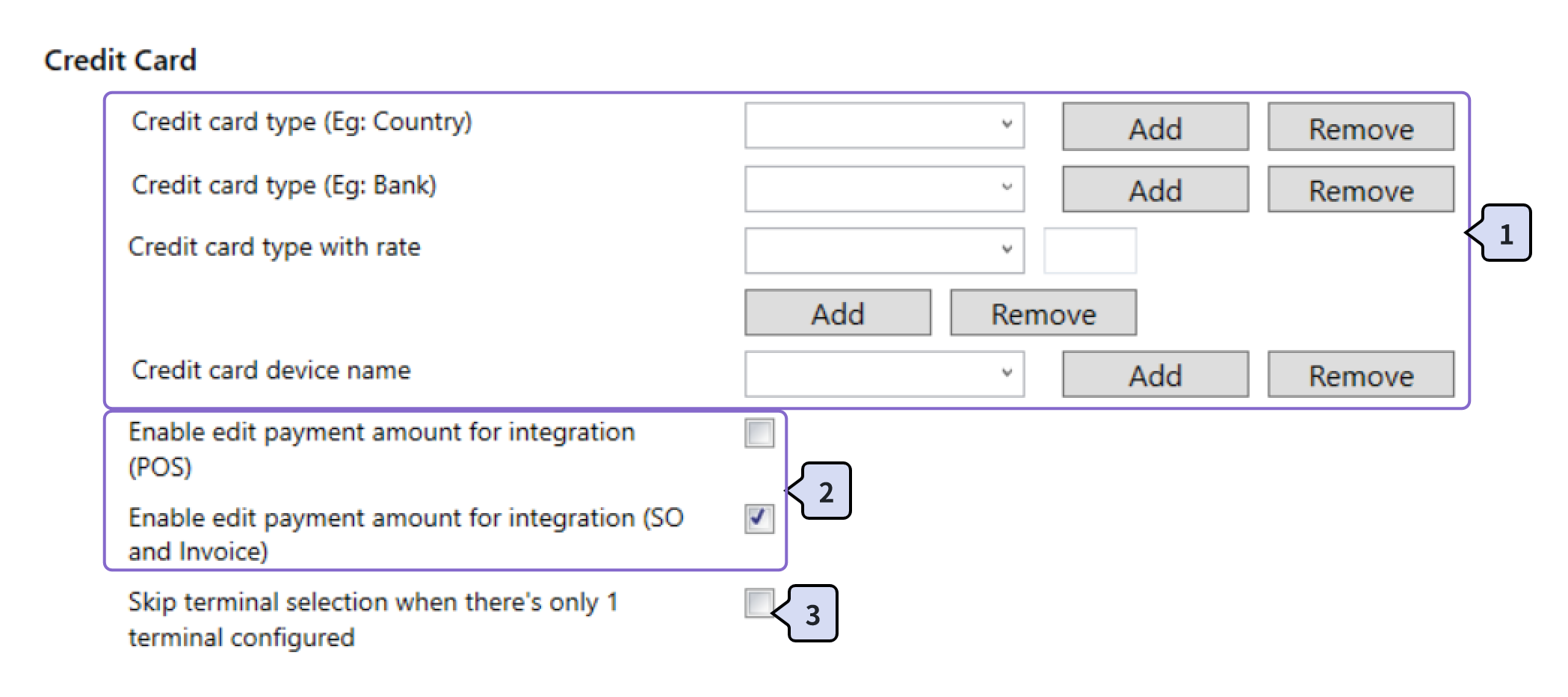

  1. Manual credit card info: Those configuration values will be used only when paid by manual credit card payment.
  2. Enable edit payment amount for integration: Setting to configure the edit function during Integrated Credit Card selection.
  3. Skip terminal selection for 1 terminal: This configuration is to enhance the operation flow to directly select the only 1 terminal instead of the process of required cashier to manually select again.
    1. Additional Note: If this setting is Enable and the terminal selection is with QR/Ewallet option, Classic POS will automatically select the first option to create payment request.


    • Related Articles

    • Setting Up GHL Nexgo Credit Card Terminal

      Introduction This article walks you through the setup process for the GHL Nexgo credit card terminal in Classic POS. Getting Started Before setting up the terminal configuration, there are few processes required to update first: Similar to the GHL ...
    • Enabling Staging Mode in Xilnex Classic

      Introduction The Staging Mode function provides a controlled environment for testing, configuration, and validation before applying changes to the live production system. It allows businesses to experiment with settings, workflows, and data without ...
    • What is Menu Management in Xilnex Classic POS?

      What is Menu Management in Xilnex Classic POS? The Menu Management function provides a centralized and flexible platform to design, organize, and maintain your product catalog across all sales channels. It is built to streamline menu setup, ensure ...
    • Understanding DuitNow QR Payment in ClassicPOS

      Introduction This document introduces the DuitNow QR payment feature available in the Xilnex Retail POS, enabling merchants to accept payments conveniently through Malaysia's national QR payment standard. The integration of DuitNowQR simplifies the ...
    • What is Menu Order Source Setting?

      The Order Source function allows businesses to define where a menu can be used or displayed, ensuring that the right menu is available on the right platform. Since menus may differ between in-store dining, online ordering, or third-party aggregators, ...
    • Recent Articles

    • Xilnex SMS Marketing Guide

      Pre-requisite Xilnex Portal Account SMS account You may request an SMS account from Xilnex team (Topup required) Setting Up Go to Xilnex Portal>Customer Engagement>Customer Engagement Platform Go to SMS Marketing For 1st time setup, go to Integration ...
    • Stamp Achievements Setup Guide

      1.0 Sales Achievement Setup Sales achievement refers to the stamp campaign that mainly based on Sales Amount. For example: Purchase above RM10 and get 1 stamp Go to portal https://portal.xilnex.com/ Go to Customer Engagement>Customer relation ...
    • How to Set Popup News Display For Loyalty Lite

      Loyalty Lite has a feature to display Popup News. Popup news window will prompt whenever user login to Loylaty Lite Homepage. Log in to Xilnex Portal Go to: https://portal.xilnex.com/CustomerEngagement?tab=CRM Navigate to Loyalty News Management ...
    • How to Create Loyalty News Tag

      This feature is used for Loyalty App with a dedicated news display section, or using Loyalty Lite with popup news enabled. News tags help you categorize your announcements so each segment displays the correct content. Log in to Xilnex Portal Go to: ...
    • Loyalty News Setup Guide

      Login in to Xilnex Portal, Go to https://portal.xilnex.com/CustomerEngagement?tab=CRM Select Loyalty News Management To add, click Add news To edit, just double click the existing news Fill in News Details Display Priority (can leave blank) Set this ...
    • Popular Articles

    • Basic - How to create a voucher-coupon

      Voucher and coupon definition Voucher can be generated in bulk and can be used once Coupon can only be created one at a time (reusable code) and can be use multiple times Pre-voucher / coupon setup There are 2 things need to be prepared before we can ...
    • Understanding DuitNow QR Payment in ClassicPOS

      Introduction This document introduces the DuitNow QR payment feature available in the Xilnex Retail POS, enabling merchants to accept payments conveniently through Malaysia's national QR payment standard. The integration of DuitNowQR simplifies the ...
    • Basic - How to change custom cost to another branch that don’t have custom cost

      Change custom cost to another branch that don’t have custom cost 1. Get the item list from the location with custom cost (Item Code, Name, Custom Cost) 2. Make sure the Show Location Price are selected 3. Export the item list in Excel 4. The file ...
    • Intermediate - How to Bill & Post to Sales from Transfer Note

      1.0 Purpose A bill is required from transfer note when an inventory transfer involves financial transactions, cost allocation, or compliance with tax and accounting regulations. It is used when stock is moved between outlets that operate as separate ...
    • Basic - How to enable E-Receipt Portal and QR Code Setup on Printing format in Xilnex

      Enable E-Receipt Portal Enable the E-receipt functionality Once Enabled, you will be getting the E-Receipt portal link Continue under Theme & Styling, enabled for the E-Invoice (LHDN) You can customize the look and feel of the E-Receipt portal ...