What is Menu Priority Level?

What is Menu Priority Level?

The Priority Level setting in Menu Management is used to determine which menu should take precedence when multiple menus are available in the same location. Since a single outlet may have different menus (e.g: Seasonal menu, Breakfast menu, Promotional menu, or Standard menu), the priority level ensures that the correct menu is applied based on the defined order.
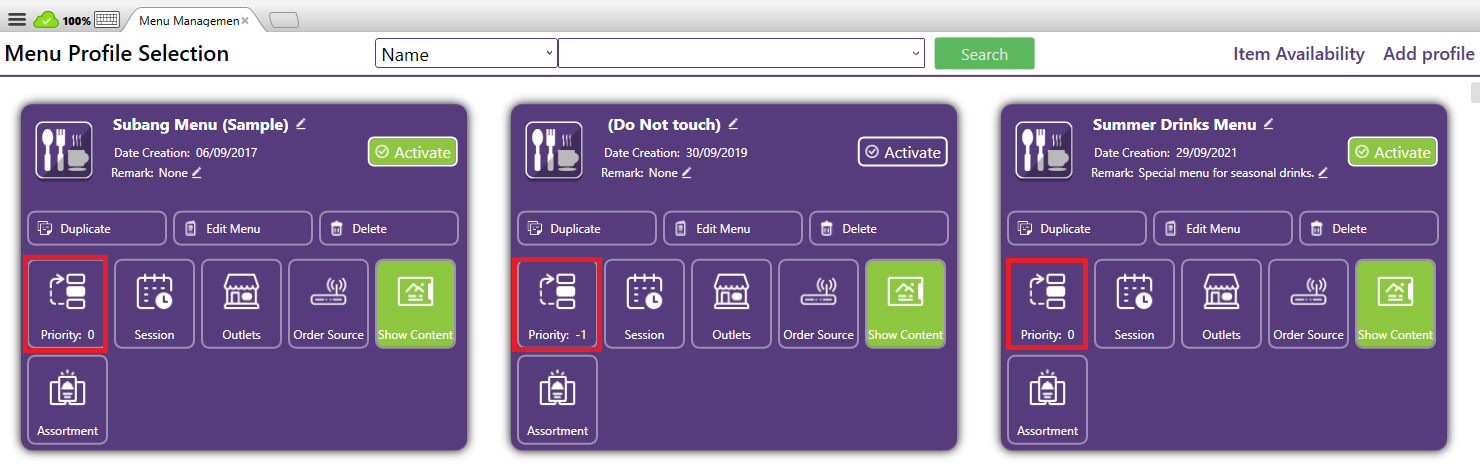
  • How it works:
    • Each menu profile can be assigned a numerical priority (e.g: 1, 2, 3).
    • The system will always refer to the menu with the highest priority first (highest number = highest priority, e.g: 10 > 5 > 1).
    • If multiple menus overlap in availability (same outlet, same order source, same session), the system will use the menu with the higher priority level to resolve conflicts.

  • Use Cases:
    • A Seasonal Promotion Menu might be given priority over the Standard Menu during a promotional period.
    • A Breakfast Menu can override the All-Day Menu during specific morning sessions.
    • A Special Outlet Menu can override the Standard Menu for a special store.

      In FNB POS during change menu action, users can use Auto to sort by Priority
    • Related Articles

    • What is Menu Session setting?

      The Session function in Menu Management is designed to control when a menu is active and available for ordering. It ensures that menus are only shown or applied during their intended time periods, such as breakfast hours, lunch promotions, or special ...
    • How to Edit a Menu Profile?

      The Edit Menu Profile function allows you to modify the existing settings, items, or configurations within a specific menu profile. It’s used when you need to update what items are available, or change the profile’s details Add: Add menu item by ...
    • What is Menu Management in Xilnex Classic POS?

      What is Menu Management in Xilnex Classic POS? The Menu Management function provides a centralized and flexible platform to design, organize, and maintain your product catalog across all sales channels. It is built to streamline menu setup, ensure ...
    • What is Menu Outlet Setting?

      The Outlet Selection function allows you to control which outlets a specific menu will be applied to. This is especially useful for businesses with multiple outlets, where not all menus are shared across every location. When creating or editing a ...
    • How to change Menu Name and Remarks?

      The Name & Remark displayed in Menu Management allows users to modify the menu profile name and add remarks for internal reference. How It Works: Edit Name Click the display name of the menu profile and edit and press Enter to save the name to the ...
    • Recent Articles

    • LiveOrder Dynamic QR - Setup Guide

      What is Dynamic QR? Dynamic QR generates a unique, per-session QR code at point of order — typically printed when a table is opened. The customer scans it to place or continues an order tied to that specific table session. Unlike Static QR ...
    • LiveKiosk Enablement - User Guide

      Overview LiveKiosk is a web-based self-ordering kiosk that runs on the same engine as LiveOrder. It allows customers to place orders independently via a kiosk device — available on Windows (via Classic POS) or Android (via the LiveKiosk APK). All ...
    • Production Release (2026-03-10)

      Release some feature for Live Order. LiveOrder v1.0.627.0310 LiveOrder v1.0.627.0310 Features - Added billing info configuration for Live order
    • Production Release (2026-03-04)

      Release some bugfixes for Live Order and Live Kiosk. Live Order v1.0.572.0304 Live Kiosk v1.0.572.0304 Live Order v1.0.572.0304 Bugfixes Fixed a case where LiveOrder payments got stuck Fixed the closure day/hour settings so they followed the ...
    • Production Release (2026-03-02)

      Release several bug fixes for Live Order and Live Kiosk. Additionally, there are some features and tweaks for Live Kiosk. LiveOrder v1.0.625.0302 LiveKiosk v1.0.625.0302 LiveOrder v1.0.625.0302 Bug Fixes - Fixed an issue where out-of-stock items were ...
    • Popular Articles

    • Basic - How to create a voucher-coupon

      Voucher and coupon definition Voucher can be generated in bulk and can be used once Coupon can only be created one at a time (reusable code) and can be use multiple times Pre-voucher / coupon setup There are 2 things need to be prepared before we can ...
    • Understanding DuitNow QR Payment in ClassicPOS

      Introduction This document introduces the DuitNow QR payment feature available in the Xilnex Retail POS, enabling merchants to accept payments conveniently through Malaysia's national QR payment standard. The integration of DuitNowQR simplifies the ...
    • Basic - How to change custom cost to another branch that don’t have custom cost

      Change custom cost to another branch that don’t have custom cost 1. Get the item list from the location with custom cost (Item Code, Name, Custom Cost) 2. Make sure the Show Location Price are selected 3. Export the item list in Excel 4. The file ...
    • Intermediate - How to Bill & Post to Sales from Transfer Note

      1.0 Purpose A bill is required from transfer note when an inventory transfer involves financial transactions, cost allocation, or compliance with tax and accounting regulations. It is used when stock is moved between outlets that operate as separate ...
    • Basic - How to enable E-Receipt Portal and QR Code Setup on Printing format in Xilnex

      Enable E-Receipt Portal Enable the E-receipt functionality Once Enabled, you will be getting the E-Receipt portal link Continue under Theme & Styling, enabled for the E-Invoice (LHDN) You can customize the look and feel of the E-Receipt portal ...