Xilnex Tour Management
Overview
The Tour Guide Module is designed to support tourism ticketing and commission tracking. It allows businesses to manage tour companies, tour guides, tour sessions, and commission payouts, with full integration into the POS for sales tracking.
Module Activation
Before using the Tour Guide Module, the user must enable the plugin:
Portal → Plugin → Tour Management
Once enabled, the Tour Management module will be available for setup and configuration.
Tour Management Setup
There are two setup steps in Tour Management:
Step 1: Create Tour Company
Users must first create a Tour Company.
Tour Company Settings include:
- Outlet Commission Setting: Commission rate per outlet
- Default Commission Setting: Applied to all outlets by default
Note: A payment-method-based commission calculation is planned and will be introduced in a future interface update. (Currently will insert data on backend and maintain it by engineer)
Step 2: Create Tour Guide
Next, users create Tour Guides by filling in the required information.
Important Notes:
- There is no direct linkage between Tour Guides and Tour Companies.
- This design allows a tour guide to work with multiple tour companies.
Data Sync to POS (Classic)
After setup, data will sync to the POS (Classic), enabling:
- Tour Session Module
- Tour Session List (Retail POS)
- Retail Tourism Button in POS
Tour Session Management (Interface Improvement In Progress)
Tour Sessions are created in the Ticket System to register arrivals for the day.
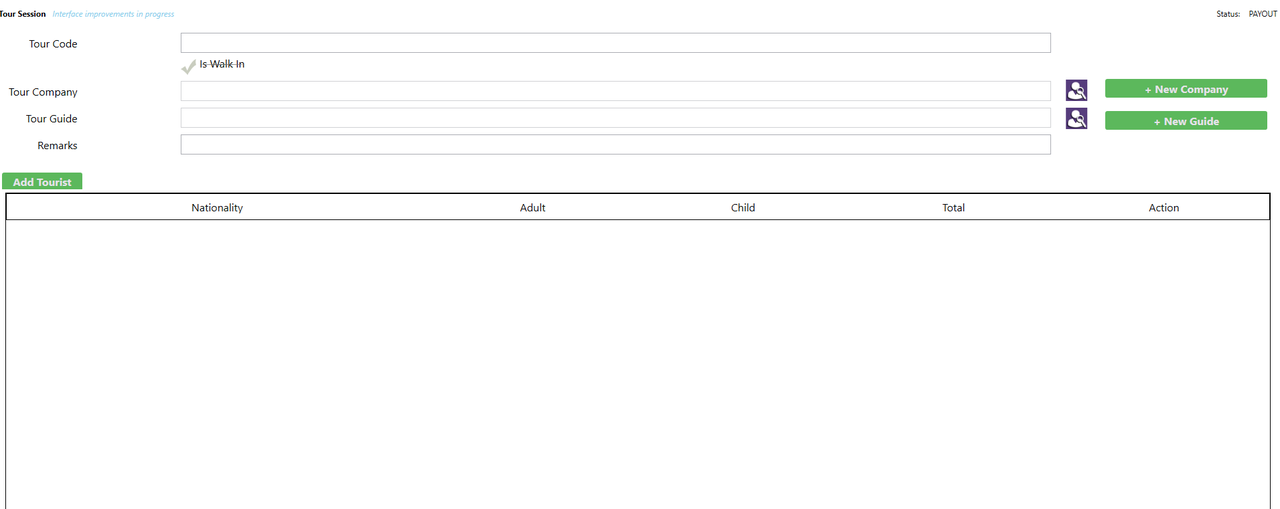
Creating a Tour Session
When creating a tour session, the user will:
- Enter a Tour Session Code
- Select a Tour Company
- Select a Tour Guide
- Color Tagging (Coming Soon)
- Optionally flag the session as Walk-in
Walk-in flags allow reporting on walk-in tours and walk-in customers by date.
Tour Session Create simplified Tour company/ Tour guide (Temporary Remove)
Tour Sessions able to create simplified tour company/ tour guide
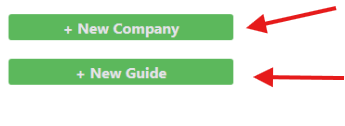
Creating a simplified Tour company/ Tour guide
- Only will fill in compulsory field
- Other information will need to be updated on the portal
Tourist Registration

After selecting the tour company, users can register tourists for the session:
- Enter number of tourists
- Select nationality
- Specify adult and child count
After saving, the system will:
- Generate and print a QR code for the tour session
The QR code is used at the POS during sales.
Tour Session Status
Each tour session has one of the following statuses:
- OPEN – Tour session is active and sales can be attached
- COMPLETE – Tour session has ended. (In backend it will calculate based on commission setting for all the sales that flag the sales under this tour session)
- PAYOUT – Commission for the session has been paid
POS Integration – Retail Tourism
In the POS, a Retail Tourism button is available.
When selected:
- Cashier can scan the tour session QR code, or
- Manually select a tour session with OPEN status
All sales performed will be:
- Tagged to the selected tour session
Commission Calculation & Payout
Commission is calculated during payout based on:
- Total sales linked to the tour session
- Outlet commission setting
- Payment method
Example:
- Outlet commission: 15%
- Commission = Total Tour Session Sales × 15% (Based on configuration set)
- Non Cash = Total Tour Session Sales x 1% (Based on configuration set) (Currently there is no UI for this yet only insert by backend)
- Total = Comission - Non Cash
Completing & Paying Out a Tour Session
After payment to the tour guide:
- User selects the tour session
- Performs Complete & Payout action
- Support bulk action
Once payout is completed:
- The session status updates to PAYOUT
- All related sales are finalized
Reporting
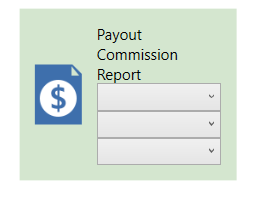
After payout, commission details can be printed via:
Report Printing → Payout Commission Report
Report Filters
The Payout Commission Report includes three filters:
- Tour Company Code (Compulsory)
- User must select a tour company code to generate the report.
- Outlet (Optional)
- If not selected, the system will automatically include all outlets.
- Tour Guide (Optional)
- If not selected, the system will automatically include all tour guides.
Printing Format Configuration
Users can customize printing formats as follows:
Tour Session QR Format
System Configuration → Current Outlet → Tour Session QR
Payout Commission Report Format
System Configuration → Current Outlet → Payout Commission Report