How to perform Stock Revaluation

The Stock Revaluation function is designed to facilitate accurate inventory cost management by allowing users to recalculate and update the average cost of items in the system. This function is particularly useful when there are discrepancies due to backdated stock entries, manual cost adjustments, or bulk import corrections.
By recalculating the average cost based on the latest stock and purchase data, the Stock Revaluation tool ensures your inventory valuation remains precise and aligned with your actual cost structure—supporting better financial reporting and inventory decision-making.
Module location
- In order to start Stock Revaluation, go to Inventory > Stock Revaluation
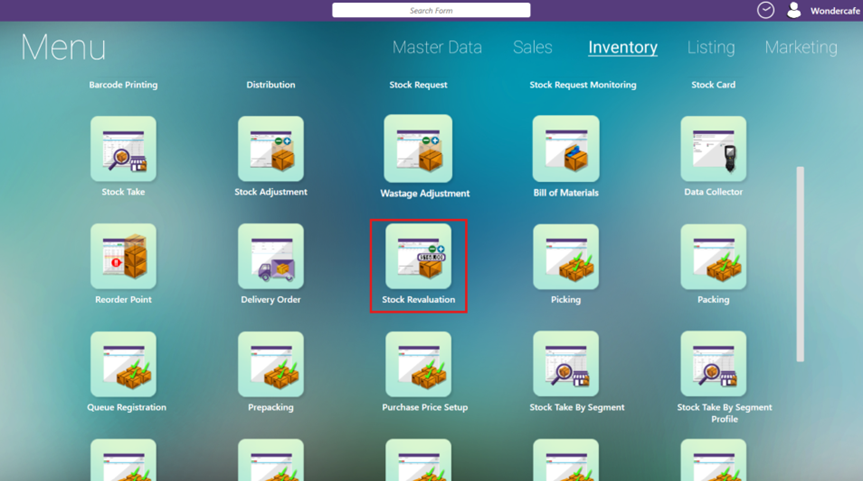
- In order to start Stock Revaluation, go to Inventory > Stock Revaluation
Module Function Explanation
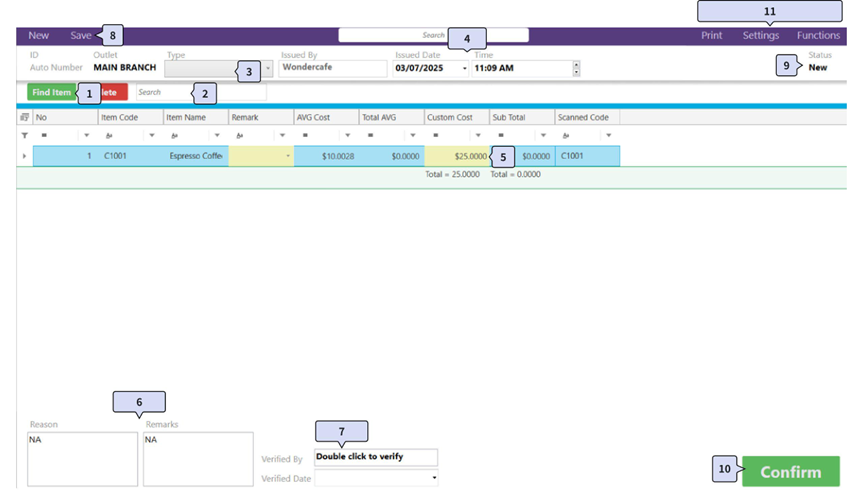
- Use Find Item function to add item from item master list:
- Besides Find Item, you can direct scan Code to add item:
- Select the document Type (options are shared with Stock Adjustment):
- Update Issued Date and Time for the Stock Revaluation:
- The stock revaluation will assign new cost as Average Cost from the Issued Date and Time of the document
- Users can perform backdate Stock Revaluation as well. In that case, the average cost will be adjusted starting from the issued date and time.
- In order to review the updated record, users can go to Inventory > Stock Card and search the adjusted item code:
- From the example above, if the Stock Revaluation is completed on 03/07/2025 and updated the item's average cost to from 10.028 to 13. The average cost will be updated to transaction after the date of Stock Revaluation.
- Take note that the Average Cost might not update instantly. It will take a while to update the average cost to the amount from the confirmed Stock Revaluation document.
- User can key in Reason and Remarks for the Stock Revaluation:
- Users can update the verification info as Verified By and Verified Date, the value will be auto filled in when document is confirmed as well:
- Save this stock revaluation to update status:
- The status of Stock Revaluation will depend on action:
- New : New stock revaluation
- Saved : Document is saved and still editable.
- Completed : Document is confirmed and uneditable. After confirmed, backend will update the average cost based on the stock revaluation document.
- The Confirm button is used to complete the Stock Revaluation. After pressed, we will update document status to Completed and document will be uneditable.
- Top left there are buttons for several functions:
- Print : User can use this button to print document. Printing can be customized under System Configuration > Printing and Format > Current Outlet > Customization on Printing Format > Stock Revaluation.
- Settings : User can use this button to customize the listing layout of the document.
- Functions : In this functions list, users can generate the import format to fill in item info and import back to the Stock Revaluation.
Related Articles
Enabling Staging Mode in Xilnex Classic
Introduction The Staging Mode function provides a controlled environment for testing, configuration, and validation before applying changes to the live production system. It allows businesses to experiment with settings, workflows, and data without ...How to use replenishment module
Introduction In Xilnex, the Replenishment Module is designed to streamline and automate the stock allocation process across outlets, ensuring optimal distribution and improved operational efficiency. Key capabilities include: Location Ranking for ...What is Menu Item Availability Setting?
The Menu Item Availability function allows businesses to control when specific menu items are available for ordering. This ensures that menus remain accurate, relevant, and aligned with operational constraints such as stock, time-based offerings, or ...How to Duplicate a Menu Profile?
The Duplicate Profile function allows users to quickly create a new menu profile by copying an existing one. This is especially useful when multiple outlets or locations share similar menus but require slight adjustments (e.g., pricing, item ...Bank Type Selection for POS Payment
Overview This enhancement allows administrators to configure a predefined list of bank types in the Xilnex Portal. The configured bank list will be available in POS and F&B POS, enabling cashiers to select the appropriate bank when processing ...
Recent Articles
Managing Lark User Email Mapping in Xilnex for Lark
Overview The Users card matches each Xilnex user to their Lark account by email. This is what lets features like Permission Approvals and Document Approvals deliver Lark cards to the right person. This article covers how to review the mapping and fix ...E-Wallet and Credit Card Payment - Recheck Status & Force Complete
This guide walks you through what to do when a payment goes through on the terminal or e-wallet, but Classic POS fails to commit sales. When Does This Happen? During payment, Classic POS will show a "Connecting to Ewallet party..." or processing ...E-Journal for BIR Compliance (Philippines)
Overview The E-Journal feature generates a .txt file that complies with BIR (Bureau of Internal Revenue) requirements in the Philippines. This feature is available only for the Philippines COM. Users from other countries' COMs will not be able to ...Disconnecting or Reconnecting Xilnex for Lark
This article covers how to disable a template, fully disconnect the integration from Lark, and reconnect it again. Disable a Template Turning a base off only stops that one base, everything else keeps syncing, and none of your existing data in Lark ...Creating a Base in Xilnex for Lark
Overview This article walks you through creating a base for a template, giving end users access to it in Lark, and verifying data is syncing correctly. Xilnex for Lark must already be connected before you start. If the Templates card isn't accessible ...
Popular Articles
Basic - How to create a voucher-coupon
Voucher and coupon definition Voucher can be generated in bulk and can be used once Coupon can only be created one at a time (reusable code) and can be use multiple times Pre-voucher / coupon setup There are 2 things need to be prepared before we can ...Understanding DuitNow QR Payment in ClassicPOS
Introduction This document introduces the DuitNow QR payment feature available in the Xilnex Retail POS, enabling merchants to accept payments conveniently through Malaysia's national QR payment standard. The integration of DuitNowQR simplifies the ...Intermediate - How to Configure and Use Approval Settings in Purchase Orders (PO)
1.0 What is approval setting In general, "approval setting" refers to the configuration or process by which a request, action, or change must be reviewed and approved before it proceeds. The term is often used in business, software applications, and ...Buy 2 for Special Price Promotion
Use Case: Stock clearance, seasonal offers, or spotlight products. From the sample screenshot above, this promotion requires 2 items to trigger. If only 1 Milk Tea is added to the sales list, no discount will apply since the condition of 2 items is ...Creating Delivery Type for Sales in Classic POS
How to Create Delivery Type 1. Access to the [System Configuration] 2. Select the [Sales] section 3. In the [All Outlets] tab, look for the 'Delivery Type' 4. Click on the [Configure] In the Delivery Type Setup form: 1. Enter the Delivery Type. 2. ...