Grab Campaign & Promotion Configuration
Grab Campaign Configuration
To perform GrabFood Promotion Configuration, access to [Sales Channel] and under Third Party Integration , look for [GrabGood]
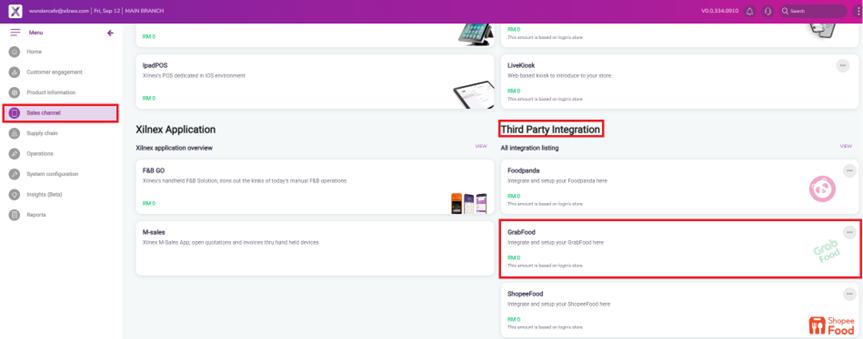
Select [GrabFood Campaigns] from the Sales Section
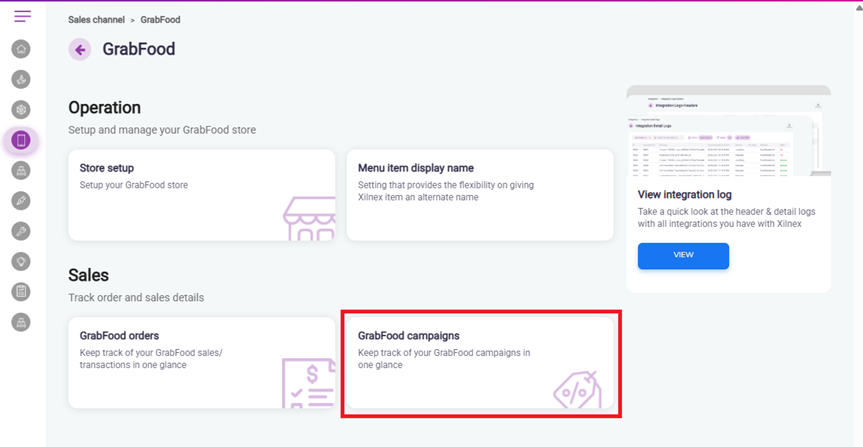
In the [GrabFood Campaigns] form, it will list all the GradFood campaigns and promotions that have been created.
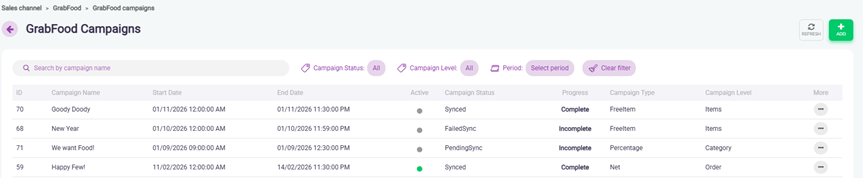
Promotion Status | Description |
Active (Green) | Promotion is currently running (current date/time is within the Promotion Start DateTime and End DateTime).
It will show as Active, 2 hours before the actual start time. |
Inactive (Grey) | Promotion is not running (current date/time is before the Promotion Start DateTime or after the End DateTime). |
Campaign Update Restriction (Grab + Xilnex Requirement)
To ensure successful campaign synchronization and creation on Grab side:
- Grab requires at least 1 hour to process and create the campaign.
- Xilnex also requires additional time to perform campaign validation, queue processing, and synchronization.
- Therefore, Xilnex enforces a 2-hour update cut-off before the campaign start time as a failsafe buffer to prevent last-minute update failure.
Any update made within 2 hours before campaign start time will be restricted/blocked.
Example:
If campaign start time = 2:00 PM, campaign updates must be done before 12:00 PM.
Campaign Status
Indicates the current synchronization progress and result of the campaign between Xilnex and Grab.
Below are the campaign status and its description.
Campaign Status | Description |
Synced | The campaign has been successfully synchronized to Grab. The latest campaign details are updated on Grab side. |
PendingSync | Campaigns are queued for synchronization but have not started syncing yet. A manual sync will need to be triggered. |
Syncing | Campaign synchronization is currently in progress. Changes may not be reflected on Grab yet. |
FailedSync | Campaign synchronization to Grab failed. The system will require retry or manual investigation. |
Deleting | Campaign deletion request has been sent and is currently being processed. Campaigns may still exist on Grab temporarily. |
FailedDelete | Campaign deletion process failed. Campaigns might still remain active/exist on Grab side. |
Progress status indicates the overall completion status of campaign synchronization, based on the current Campaign Status of each record.
Progress | Description |
Complete | All campaign records have finished processing. No remaining records in PendingSync or Syncing status. The final result will be reflected in the Success / Failed count. |
Incomplete | Sync process is not fully completed yet. There are still campaign records in PendingSync or Syncing status or FailedSync status. Progress summary will show the current count of Success / Pending / Failed, which indicates that some sync to Grab successfully and some might not sync successfully to Grab. |
When mouse-over the progress status, it will display a breakdown of the sync result:
- Success Count = Total campaigns synced successfully to Grab
- Pending Count = Total campaigns still in progress of syncing to Grab or deleting from Grab
- Failed Count = Total campaigns failed due to encountered errors
Understanding Campaign Type and Campaign Level
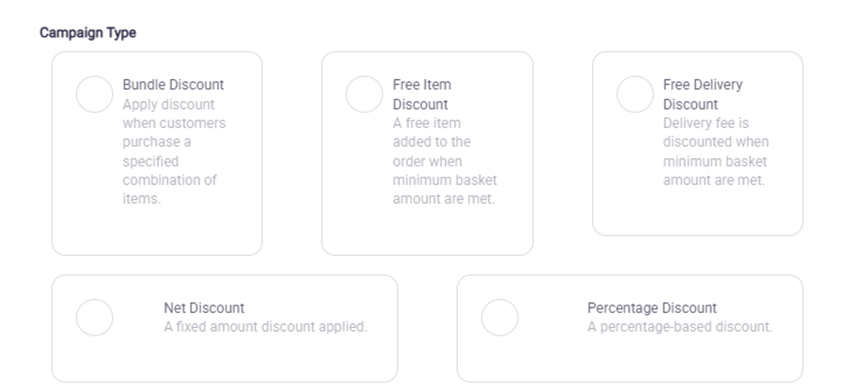
Grab promotion only supports the following campaign types:
- Net Discount
- Percentage Discount
- Bundle Discount
- Free Item Discount
- Free Delivery Discount
Each campaign type supports different Campaign Levels.
Net Discount
Campaign Level: Item Level, Category Level and Order Level
A fixed amount discount applied onto different campaign levels.
Campaign Level | Description |
Item Level | A discount is applied to selected item(s) with a fixed amount. |
Category Level | A discount is applied to all items under selected category(s) with a fixed amount. |
Order Level | A discount is applied to the total order amount with a fixed amount. |
Percentage Discount
Campaign Level: Item Level, Category Level and Order Level
A percentage-based discount applied onto different campaign levels.
Campaign Level | Description |
Item Level | Discount is applied to selected item(s) using percentage. |
Category Level | Discount is applied to all items under selected category(s) using percentage. |
Order Level | Discount is applied to the total order amount using percentage. |
Bundle Discount
Campaign Level: Item Level only
Apply discount when customers purchase a specified combination of items. Bundle Discount supports multiple bundle discount types:
Bundle Discount Type | Description |
BundleSameNet | Same item bundled with a fixed amount discount. |
BundleDiffNet | Different items bundled with a fixed amount discount. |
BundleSamePercentage | Same item bundled with a percentage discount. |
BundleDiffPercentage | Different items bundled with a percentage discount. |
BundleSameFixPrice | Same item bundled and sold at a fixed price. |
Free Item Discount
Campaign Level: Item Level only
Campaign Level | Description |
Item Level | A customer receives a free item when purchasing selected item(s). |
Free Delivery Discount
Campaign Level: Order Level only
Campaign Level | Description |
Order Level | Free delivery is applied at order level based on campaign conditions. |
To Create a new Grab Campaign Promotion
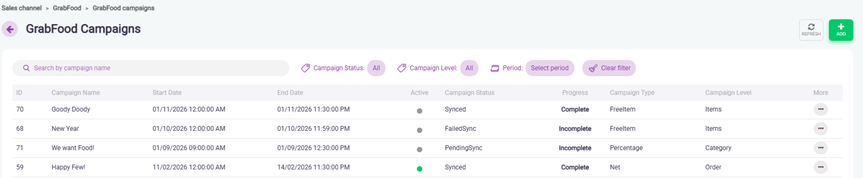
In the [GrabFood Campaigns] form click on the [Add] button, a [Add Campaign] modal will prompt for you to fill in the campaign information.
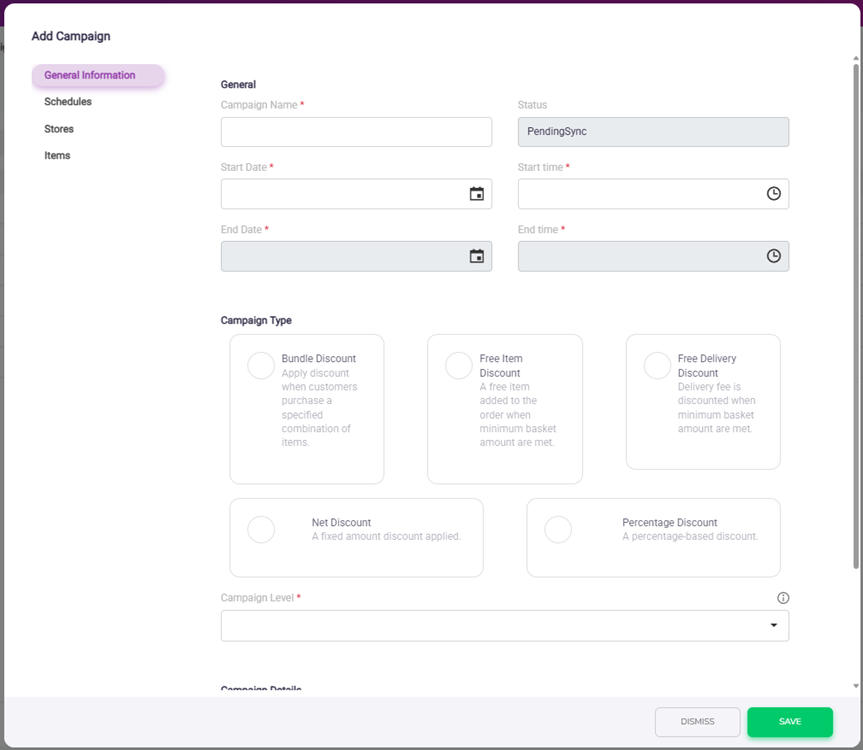
Bundle Discount Type | Description |
Campaign Name | Name of the campaign for identification and reference. |
Status | System-generated campaign status. This field is not editable and will auto-update based on the campaign timeline and sync progress. |
Start Date / Start Time | The date and time when the campaign starts. |
End Date / End Time | The date and time when the campaign ends. Based on Grab promotion policy, the duration between Start DateTime and End DateTime must be at least 2 hours. |
Campaign Type | Type of campaign to be created (e.g. Net Discount, Percentage Discount, Bundle Discount, etc.).
Refer to Understanding Campaign Type and Campaign Level section for details. |
Campaign Level | Defines the discount application level (Item / Category / Order).
Refer to Understanding Campaign Type and Campaign Level section for details. |
Total Redemption | The maximum number of times the campaign can be redeemed. |
Total Redemption Per User | The maximum number of times the campaign can be redeemed per customer. |
Apply To | Defines which customer type is eligible for the campaign. All – Applicable to all customers New – Applicable to customers who have not ordered from this store in the last 3 months (Order-level campaign only) |
Menu Profile | Only stores and items under the selected menu profile are eligible to be applied in this campaign. |
Add Schedule | Defines the campaign active schedule for each day of the week (Sunday to Saturday), including the start and end time. |
Stores | Stores that the campaign will apply to. Available store lists are filtered based on the selected Menu Profile. |
Items | Items included in the campaign. Available item list is filtered based on the selected Menu Profile. |
Once all the information is filled, click on the [Save] button to save the campaign.
System validation will be performed, and an error message will be prompted if any required field or setup is incomplete.
To Sync the Campaign Promotion to Grab
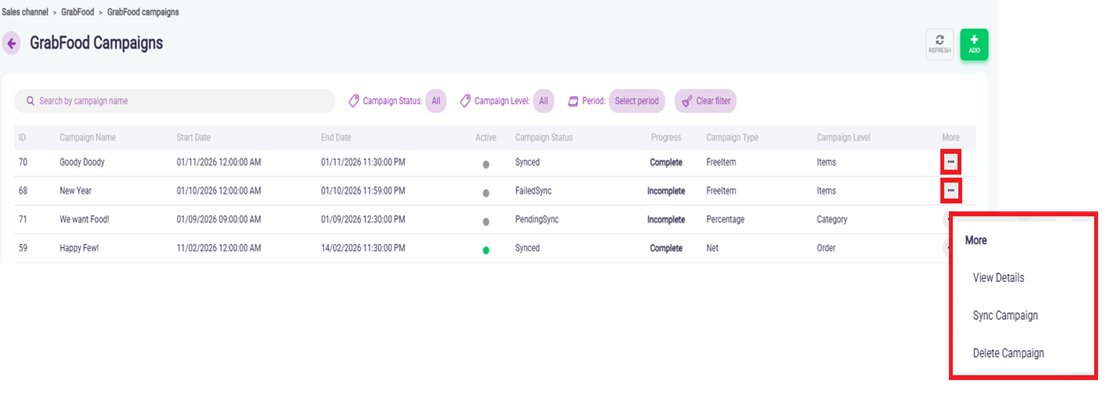
In the [GrabFood Campaigns] form, select [Sync Campaign] to sync the campaign to Grab.
The Campaign Status, which will update from PendingSync to Syncing, the status update usually reflects instantly, but in some cases it may take around 5–15 minutes. Use the [Refresh] button to refresh the status.
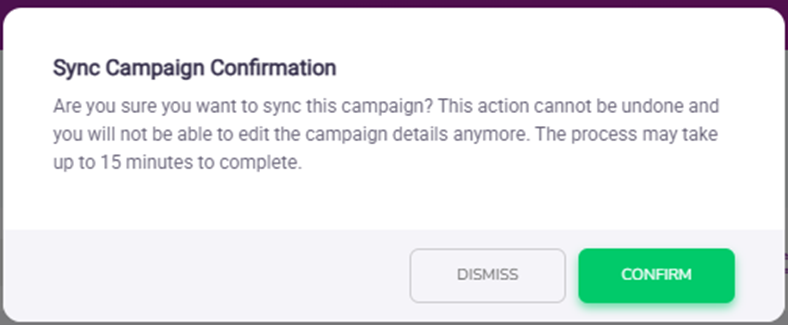
Once the sync is successful, the status will change to Synced.
If any error occurs during syncing, the status will change to FailedSync.
You may also mouse over the Progress column to view the sync summary, including the number of Success, Pending, and Failed records.
P/S Note : If you have made any changes to the menu content, it is advised to sync the menu first before syncing the campaign.
This is to ensure the promotion items exist in the Grab live menu, otherwise the campaign sync may fail and cause promotion creation errors.
To Check on the Status of Campaign Sync
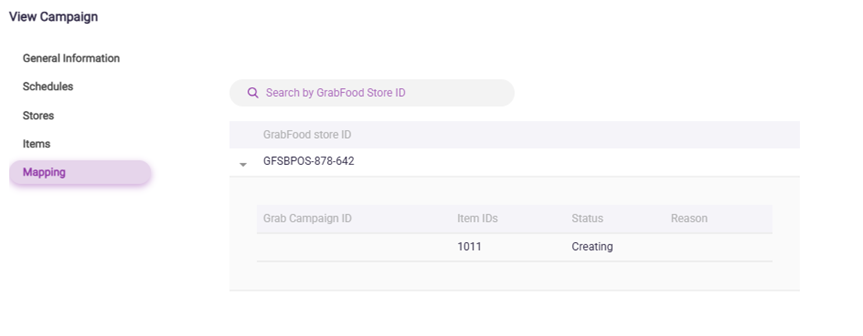
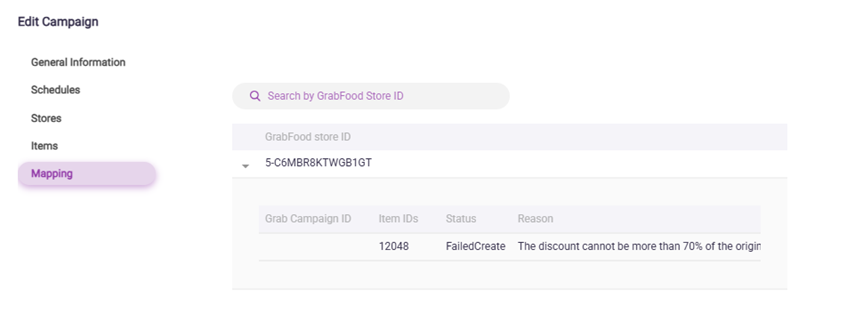
Double-click on the campaign and switch to the [Mapping] tab.
It will display the details of each record, including whether it is currently being created or if any error was encountered.
To Resolve Campaign Sync Error
Steps to resolve the campaign sync error, if a campaign sync error occurs.
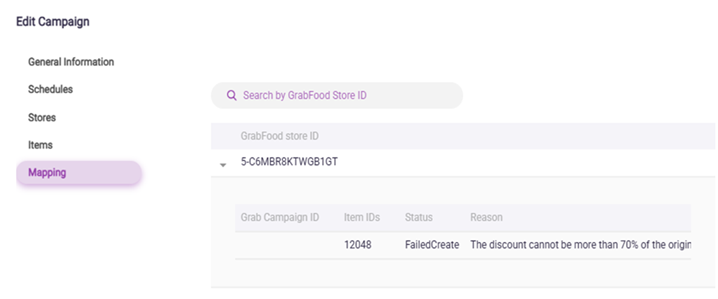
- Double-click the campaign and go to the [Mapping] tab to review the error details.
- Make the necessary changes based on the error message accordingly
- Click [Save] to save the changes
- Perform [Sync Campaign] again
Note: All error messages are returned from Grab (API response), not generated by Xilnex.
To Delete a Campaign
Click on the campaign and select [Delete Campaign] to remove it from the system.
The deletion will also attempt to remove the campaign from Grab during the next sync process.
A success delete message will be shown once it is successfully triggered.
Related Articles
Delivery Platform Packaging Fee Configuration
Packaging Fee Packaging Fee is an additional charge imposed by the restaurant/merchant to cover takeaway and delivery packaging materials such as containers, cups, lids, bags, cutlery, seals, etc. For food delivery platforms: Foodpanda Foodpanda ...Enabling GrabFood Self-Serve Integration
The GrabFood integration enables merchants to seamlessly receive and manage GrabFood orders directly within the Xilnex POS system. Once enabled, GrabFood orders are automatically synced into Xilnex, reducing manual entry, minimizing errors, and ...Introducing Xilnex for Lark
Product Introduction Xilnex for Lark connects your Xilnex ClassicPOS system to Lark Suite. If your team is used to exporting reports, copying numbers into spreadsheets, or chasing approvals over chat, this replaces that manual work: your sales, ...Xilnex-AutoCount - Portal Configurations
All integration rules and configurations are managed through the Xilnex Web Portal. This guide walks you through accessing the portal and introduces the three core configuration areas. Accessing the Xilnex Web Portal: Open your web browser and ...How to Install and Set Up Xilnex for Lark (Custom App)
Overview This article walks you through connecting your Lark workspace to your Xilnex account. This is a one-time setup step performed by an IT administrator, using the Configuration card in Xilnex Portal. Before You Begin Confirm you have the ...
Recent Articles
Managing Lark User Email Mapping in Xilnex for Lark
Overview The Users card matches each Xilnex user to their Lark account by email. This is what lets features like Permission Approvals and Document Approvals deliver Lark cards to the right person. This article covers how to review the mapping and fix ...E-Wallet and Credit Card Payment - Recheck Status & Force Complete
This guide walks you through what to do when a payment goes through on the terminal or e-wallet, but Classic POS fails to commit sales. When Does This Happen? During payment, Classic POS will show a "Connecting to Ewallet party..." or processing ...E-Journal for BIR Compliance (Philippines)
Overview The E-Journal feature generates a .txt file that complies with BIR (Bureau of Internal Revenue) requirements in the Philippines. This feature is available only for the Philippines COM. Users from other countries' COMs will not be able to ...Disconnecting or Reconnecting Xilnex for Lark
This article covers how to disable a template, fully disconnect the integration from Lark, and reconnect it again. Disable a Template Turning a base off only stops that one base, everything else keeps syncing, and none of your existing data in Lark ...Creating a Base in Xilnex for Lark
Overview This article walks you through creating a base for a template, giving end users access to it in Lark, and verifying data is syncing correctly. Xilnex for Lark must already be connected before you start. If the Templates card isn't accessible ...
Popular Articles
Basic - How to create a voucher-coupon
Voucher and coupon definition Voucher can be generated in bulk and can be used once Coupon can only be created one at a time (reusable code) and can be use multiple times Pre-voucher / coupon setup There are 2 things need to be prepared before we can ...Understanding DuitNow QR Payment in ClassicPOS
Introduction This document introduces the DuitNow QR payment feature available in the Xilnex Retail POS, enabling merchants to accept payments conveniently through Malaysia's national QR payment standard. The integration of DuitNowQR simplifies the ...Intermediate - How to Configure and Use Approval Settings in Purchase Orders (PO)
1.0 What is approval setting In general, "approval setting" refers to the configuration or process by which a request, action, or change must be reviewed and approved before it proceeds. The term is often used in business, software applications, and ...Buy 2 for Special Price Promotion
Use Case: Stock clearance, seasonal offers, or spotlight products. From the sample screenshot above, this promotion requires 2 items to trigger. If only 1 Milk Tea is added to the sales list, no discount will apply since the condition of 2 items is ...Creating Delivery Type for Sales in Classic POS
How to Create Delivery Type 1. Access to the [System Configuration] 2. Select the [Sales] section 3. In the [All Outlets] tab, look for the 'Delivery Type' 4. Click on the [Configure] In the Delivery Type Setup form: 1. Enter the Delivery Type. 2. ...