Xilnex-AutoCount - Account Code Mapping

Xilnex-AutoCount - Account Code Mapping

Account Code Mapping connects Xilnex transaction components (sales types, item categories, payment methods) to AutoCount GL accounts and payment codes. This ensures transactions post to the correct financial accounts.


What Is Account Code Mapping?

Account Code Mapping establishes the relationship between:
  1. Xilnex transaction attributes (e.g., "Retail sale", "Coffee category", "Cash payment")
  2. AutoCount GL codes (e.g., "500-5000 Coffee Sales", "310-1000 Cash Account")
Without mapping, the system doesn't know which GL account to use when posting.


Core Mapping Types by Module

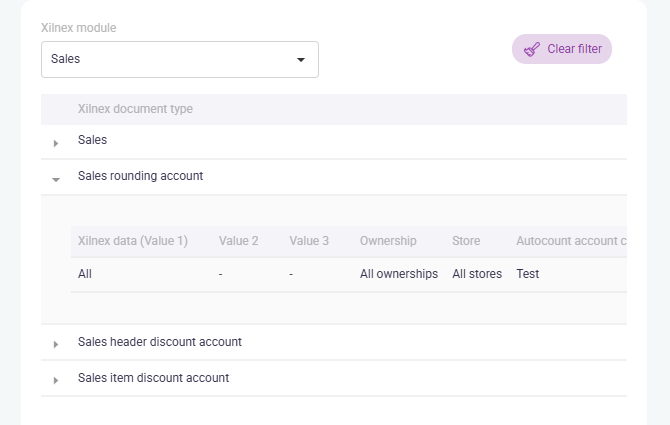
Sales Module Mappings
Mapping Type
Used For
Example
Sales Account
Main revenue GL by sales type and item category
Food Sales → 500-5000
Sales Rounding Account
Rounding differences in sales
Rounding Adjustment → 550-0000
Sales Header Discount Account
Bill-level discounts (e.g., "20% off entire purchase")
Discount Allowed → 520-0000
Sales Item Discount Account
Item-level discounts (e.g., "Buy 1 Get 1")
Line Item Discount → 150-0000

Purchase Module Mappings

Mapping Type
Used For
Example
Purchase Account
Product purchase GL by receive type and item category
Accessories Purchase → 610-0000
Purchase Invoice Variance Account
Price/rounding differences between GRN and invoice
Purchase Variance → 630-0000
Purchase Tax Variance Account
Tax differences between GRN and invoice
Tax Variance → 640-0000

Payment Module Mappings

Mapping Type
Used For
Example
Payment Method Code
Payment method (Cash, Card, E-Wallet, Voucher) to AutoCount journal type
Cash → CASH (320-0000)
Card Type
Specific card (Visa, MasterCard)
Visa → VIS (310-1000)
E-Wallet / Gateway
Specific e-wallet or payment gateway
GrabPay → GRABPAY (310-1000)


Step-by-Step Guide

Creating a Sales Account Mapping

  1. Go to Integration > AutoCount > Account Code
  2. Select module: Sales
  3. Click "Add data" button
  4. In the form, fill:
    1. Data (Value 1): Sales Type
    2. Value 2: Item Grouping Method
    3. Value 3: Category Value
    4. Ownership: All ownerships
    5. Store: All stores
    6. AutoCount account code: GL code from AutoCount
  5. Click "Save"

Creating a Payment Method Mapping

    1. Go to Integration > AutoCount > Account Code
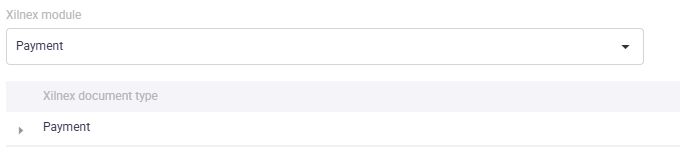
    2. Select module: Payment (or Cash Sales → Payment sub-section)
    3. Click "Add data" button
    4. In the form, fill:
      1. Data (Value 1):  Payment Method
      2. Value 2: Only when applicable
      3. Value 3: Only when applicable
      4. Ownership: All ownerships
      5. Store: All stores
      6. AutoCount account code: Payment Method Code from AutoCount
    5. Click "Save"

    Creating a Purchase Account Mapping

    1. Go to Integration > AutoCount > Account Code
    2. Select module: Purchase
    3. Click "Add data" button
    4. In the form, fill:
      1. Data (Value 1): Receive type 
      2. Value 2: Item grouping method
      3. Value 3: Accessories
      4. Ownership: All ownerships
      5. Store: All stores
      6. AutoCount account code: GL code from AutoCount
    5. Click "Save"

    Creating a Discount Account Mapping

    1. Go to Integration > AutoCount > Account Code
    2. Select module: Sales
    3. Click "More" at the left to expand options
    4. Select "Sales header discount account"
    5. Click "Add data"
    6. In the form, fill:
      1. Data (Value 1): All or Specific sales type
      2. Value 2: When applicable
      3. Value 3: When applicable
      4. Ownership: All ownerships
      5. Store: All stores
      6. AutoCount account code: GL code from AutoCount
    7. Click "Save"

    Tips for Accurate Mapping

    1. Get GL codes from AutoCount: Open AutoCount → File > G/L > Account Maintenance to see your Chart of Accounts.
    2. Get Payment codes from AutoCount: Open AutoCount → General > Maintenance > Payment Method Maintenance to see available payment codes.
    3. Map hierarchically: Start broad (e.g., "All sales types" → main GL), then narrow (e.g., "Retail Coffee" → specific GL) for detailed reporting.
    4. Test one mapping: Create one mapping, run a test post, verify it worked, then add more.

      • Related Articles

      • Xilnex-AutoCount - Portal Configurations

        All integration rules and configurations are managed through the Xilnex Web Portal. This guide walks you through accessing the portal and introduces the three core configuration areas. Accessing the Xilnex Web Portal: Open your web browser and ...
      • Xilnex-AutoCount - What Gets Synchronized?

        The Xilnex–AutoCount integration establishes a seamless, automated data exchange between your Xilnex Retail Management System and AutoCount Accounting System, so your operational transactions are automatically reflected in your financial records. 1. ...
      • Xilnex-AutoCount - Posting Cash Sales

        Cash Sales posting consolidates daily retail POS transactions and posts them to AutoCount Cash Book Entry, providing accurate cash-flow visibility and daily revenue tracking. What Is Cash Sales Posting? Cash Sales posting: Consolidates all retail ...
      • Xilnex-AutoCount - Troubleshooting Common Posting Errors

        Cash Sales Error Cause Solution "Missing mapping" A GL account or payment method wasn't mapped Go to Account Code, add the missing mapping, re-post "No data generated" No transactions in the date range Verify date range is correct and POS has ...
      • Xilnex-AutoCount - Document Field Mapping

        Document Field Mapping specifies how Xilnex fields appear in AutoCount document fields. This includes header-level data (like Document Number and Customer) and detail-level data (like Item Description and Tax Code). What Is Document Field Mapping? ...
      • Recent Articles

      • Production Release (2026-03-04)

        Release some bugfixes for Live Order and Live Kiosk. Live Order v1.0.572.0304 Live Kiosk v1.0.572.0304 Live Order v1.0.572.0304 Bugfixes Fixed a case where LiveOrder payments got stuck Fixed the closure day/hour settings so they followed the ...
      • Production Release (2026-03-02)

        Release several bug fixes for Live Order and Live Kiosk. Additionally, there are some features and tweaks for Live Kiosk. LiveOrder v1.0.625.0302 LiveKiosk v1.0.625.0302 LiveOrder v1.0.625.0302 Bug Fixes - Fixed an issue where out-of-stock items were ...
      • 11.0 Referral Program

        The Referral Program module helps businesses grow their customer base organically by incentivising existing members to invite friends and family to join the Xilnex Loyalty App. Both the referrer (existing member) and the referee (new user) receive ...
      • 10.0 Push Notification

        The Push Notification feature enables businesses to communicate directly with their customers through real-time alerts delivered to the app. It is the most direct channel available within the Xilnex Loyalty ecosystem for reaching members instantly. ...
      • 9.0 Store Location

        The Store Location module helps members find your outlets quickly through an interactive map and store listing embedded within the Xilnex Loyalty App. This feature reduces friction for customers looking for the nearest branch and drives foot traffic ...
      • Popular Articles

      • Basic - How to create a voucher-coupon

        Voucher and coupon definition Voucher can be generated in bulk and can be used once Coupon can only be created one at a time (reusable code) and can be use multiple times Pre-voucher / coupon setup There are 2 things need to be prepared before we can ...
      • Understanding DuitNow QR Payment in ClassicPOS

        Introduction This document introduces the DuitNow QR payment feature available in the Xilnex Retail POS, enabling merchants to accept payments conveniently through Malaysia's national QR payment standard. The integration of DuitNowQR simplifies the ...
      • Basic - How to change custom cost to another branch that don’t have custom cost

        Change custom cost to another branch that don’t have custom cost 1. Get the item list from the location with custom cost (Item Code, Name, Custom Cost) 2. Make sure the Show Location Price are selected 3. Export the item list in Excel 4. The file ...
      • Intermediate - How to Bill & Post to Sales from Transfer Note

        1.0 Purpose A bill is required from transfer note when an inventory transfer involves financial transactions, cost allocation, or compliance with tax and accounting regulations. It is used when stock is moved between outlets that operate as separate ...
      • Basic - How to enable E-Receipt Portal and QR Code Setup on Printing format in Xilnex

        Enable E-Receipt Portal Enable the E-receipt functionality Once Enabled, you will be getting the E-Receipt portal link Continue under Theme & Styling, enabled for the E-Invoice (LHDN) You can customize the look and feel of the E-Receipt portal ...