Integrating with Xilnex: Event Triggers & Webhook Configuration

Integrating with Xilnex: Event Triggers & Webhook Configuration

Overview

Xilnex Event Hub is an integration framework that enables your system to automatically dispatch real-time notifications to external applications whenever a defined business action occurs — such as completing a sale, creating a client, or processing a payment.

The setup is built on two core components:
  1. Event Trigger — defines which business event to monitor
  2. Webhook Configuration — defines where to route the notification when that event fires

Prerequisites

Before proceeding, ensure you have:
  1. Active login credentials to the Xilnex Portal
  2. The API endpoint URL of the receiving external system
  3. A webhook secret key (provided by your IT or integration team)

Event Hub Setup Flow

  1. Log in to Xilnex Portal
  2.         ↓
  3. Navigate to Xilnex Event Hub
  4.         ↓
  5. Create an Event Trigger     ← Define which event to monitor
  6.         ↓
  7. Create a Webhook Configuration  ← Define where to send the notification
  8.         ↓
  9. Repeat webhook creation for each additional receiving system
  10.         (same Event Trigger, multiple destinations)


Step-by-Step Guide

Step 1 — Log In to Xilnex Portal
Navigate to https://portal.xilnex.com and sign in with your credentials.

Step 2 — Navigate to Xilnex Event Hub
Access the Event Hub via either of the following methods:
Global Search
Side Navigation
Global Search
  1. Click the Search Bar at the top-right corner of the portal.
  2. Type event.
  3. Select Xilnex Event Hub from the search results.

Side Navigation
  1. Click System Configuration in the left navigation menu.
  2. Under General System Settings, select Xilnex Event Hub.

 Step 3 — Understand the Event Hub Dashboard
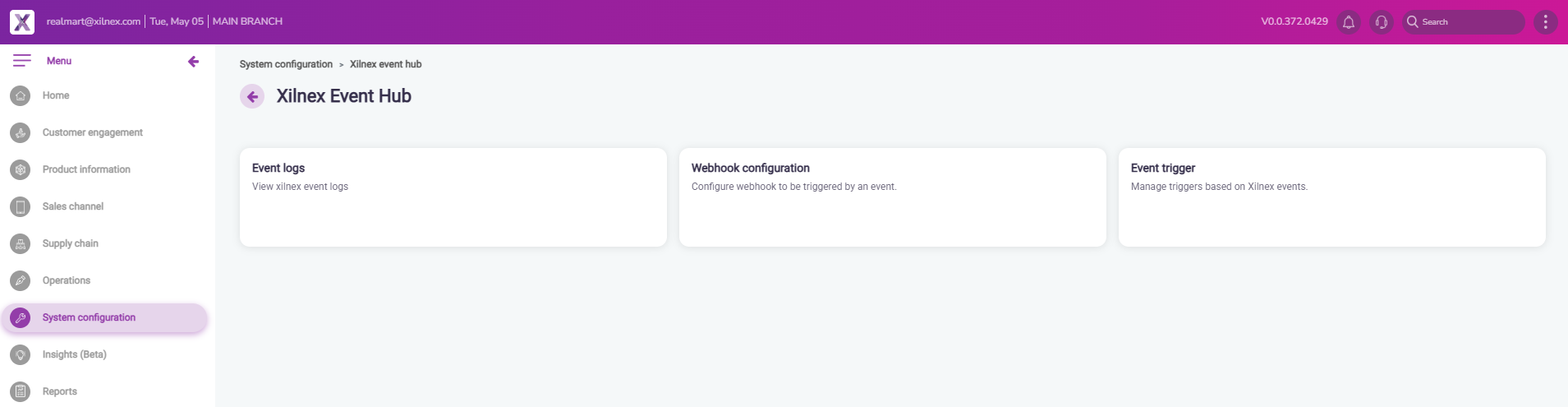
The Event Hub dashboard is organized into three functional sections:
SectionPurpose
Event LogsAudit trail of all triggered events — includes timestamp, status, and payload details
Webhook ConfigurationRegister and manage the external API endpoints that receive event notifications
Event TriggerDefine and activate the specific business events to monitor

Step 4 — Create an Event Trigger

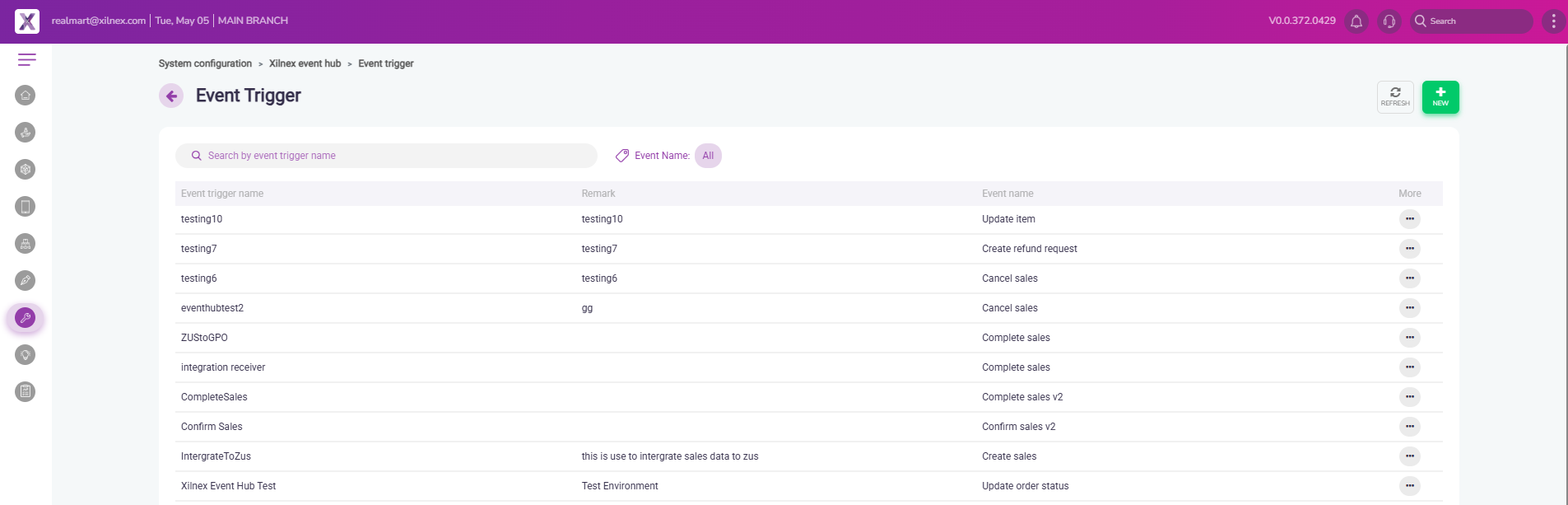
An Event Trigger instructs Xilnex which business event to monitor. Each event type only requires one trigger, configured once.
  1. From the dashboard, click Event Trigger.
  2. Click New at the top-right corner. A configuration dialog will appear.
  3. Complete the following fields:


    FieldDescriptionRequired
    Event Trigger NameA clear, descriptive label for this trigger (e.g., Complete Sales Output)✅ Yes
    RemarkOptional internal notes for reference❌ No
    Event NameSelect the target business event from the dropdown (see full event list below)✅ Yes
  4. Click SAVE to activate the trigger.
Info
See here for all event lists

Step 5 — Create a Webhook Configuration
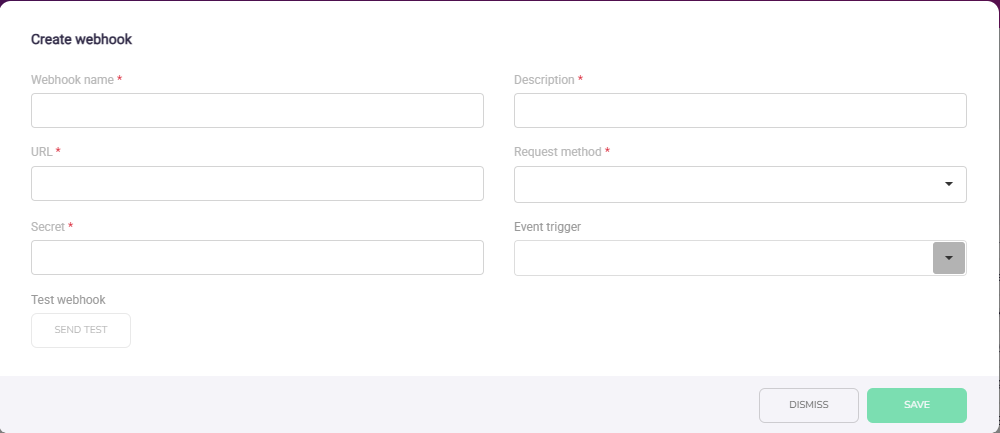

A Webhook Configuration defines the destination endpoint that receives the event payload. You may register multiple webhooks against the same Event Trigger — this is the recommended approach when multiple external systems need to consume the same event.
Notes
Prerequisite: The relevant Event Trigger (Step 4) must exist before creating a webhook.
  1. From the dashboard, click Webhook Configuration.
  2. Click New at the top-right corner. A configuration dialog will appear.
  3. Complete the following fields:
FieldDescriptionExample
Webhook NameAn identifier for the receiving systemSAP Receive Complete Sales
DescriptionBrief explanation of this webhook's functionNotify SAP upon sale completion
URLThe API endpoint of the receiving systemhttps://your-system.com/api/receive
Request MethodHTTP method expected by the receiverPOST
SecretShared key used to verify request authenticity (see below)Provided by your IT team
Event TriggerThe trigger this webhook responds toComplete Sales Output


Webhook Signature Verification

To validate that incoming requests originate from Xilnex, implement the following verification logic on the receiving system:
  1. Retrieve the signature from the request header: xilnex-webhook-signature
  2. Extract the raw request body (unparsed)
  3. Hash the raw body using HMAC-SHA256 with the shared secret
  4. Compare the computed hash against the header signature — if they match, the request is authentic
  5. If signature verification is not required by your receiving system, enter any placeholder value (e.g., -) in the Secret field.

    • Related Articles

    • Available Events: Xilnex Event Hub

      Last Updated: 05 May 2026 Sales # Event Name 1 Create Sales 2 Confirm Sales 3 Confirm Sales v2 4 Complete Sales 5 Complete Sales v2 6 Cancel Sales 7 Update Sales 8 Cancel Sales Order 9 Confirm Sales Order 10 Complete Sales Order 11 Post Quotation to ...
    • Xilnex Auth Integration Guide

      Introduction Xilnex Auth implements OAuth 2.0, a widely adopted authorization framework that enables secure access to protected resources by issuing access tokens to client applications. This document provides a comprehensive guide on how to use ...
    • OAuth Project & Client Permission Management

      Overview The OAuth Project & Client Permission module controls which roles can access, configure, and manage OAuth projects and client credentials within the system. Permissions are managed under System Configuration > User Roles Permission > All ...
    • Managing OAuth Client Credentials

      Overview Xilnex Auth implements the OAuth 2.0 protocol to govern service-to-service authorization. Client credentials serve as the authentication identity for backend services, enabling them to authorize, or be authorized by, other services within ...
    • Recent Articles

    • Available Events: Xilnex Event Hub

      Last Updated: 05 May 2026 Sales # Event Name 1 Create Sales 2 Confirm Sales 3 Confirm Sales v2 4 Complete Sales 5 Complete Sales v2 6 Cancel Sales 7 Update Sales 8 Cancel Sales Order 9 Confirm Sales Order 10 Complete Sales Order 11 Post Quotation to ...
    • Integrating with Xilnex: Event Triggers & Webhook Configuration

      Overview Xilnex Event Hub is an integration framework that enables your system to automatically dispatch real-time notifications to external applications whenever a defined business action occurs — such as completing a sale, creating a client, or ...
    • LiveOrder New UI Announcement

      LiveOrder — New Ordering Experience Now Available What's New? We're excited to introduce LiveOrder New UI, a redesigned ordering experience built to make ordering faster and easier for your customers. What's Changing — and Why It Matters We've ...
    • How to Cancel an E-Invoice on Dashboard

      Overview Sometimes cancelling an e-invoice is inevitable. Common situations include: Incorrect buyer information (e.g., wrong name, TIN, or address) Transaction was voided or order was cancelled after invoice issuance Duplicate e-invoice issued for ...
    • Guidelines to Set Up Promotion for Walk-in (System Default)

      Guidelines to Set Up Promotion for Walk-in (System Default) Previously, the system did not have a specific indicator for walk-in customers. As a result, all promotion rules applied equally to all customer types, including walk-in customers. However, ...
    • Popular Articles

    • Basic - How to create a voucher-coupon

      Voucher and coupon definition Voucher can be generated in bulk and can be used once Coupon can only be created one at a time (reusable code) and can be use multiple times Pre-voucher / coupon setup There are 2 things need to be prepared before we can ...
    • Understanding DuitNow QR Payment in ClassicPOS

      Introduction This document introduces the DuitNow QR payment feature available in the Xilnex Retail POS, enabling merchants to accept payments conveniently through Malaysia's national QR payment standard. The integration of DuitNowQR simplifies the ...
    • Basic - How to change custom cost to another branch that don’t have custom cost

      Change custom cost to another branch that don’t have custom cost 1. Get the item list from the location with custom cost (Item Code, Name, Custom Cost) 2. Make sure the Show Location Price are selected 3. Export the item list in Excel 4. The file ...
    • Intermediate - How to Bill & Post to Sales from Transfer Note

      1.0 Purpose A bill is required from transfer note when an inventory transfer involves financial transactions, cost allocation, or compliance with tax and accounting regulations. It is used when stock is moved between outlets that operate as separate ...
    • Basic - How to enable E-Receipt Portal and QR Code Setup on Printing format in Xilnex

      Enable E-Receipt Portal Enable the E-receipt functionality Once Enabled, you will be getting the E-Receipt portal link Continue under Theme & Styling, enabled for the E-Invoice (LHDN) You can customize the look and feel of the E-Receipt portal ...