Centralized Secondary Screen Media (Coming Soon!)
Secondary Screen Guidelines
Current Setup (Local Media)
Currently, the secondary screen relies on a local folder to display media on the POS.
- Xilnex POS automatically creates a folder named "SecondaryMonitorMedia" on the desktop, or users can configure a custom folder location.
- To display media, users must manually place files into this folder.
- This means media updates must be manually handled one PC at a time. (User might need to access each individual PC to remove the media)
New Feature (Centralized via Portal)
Note: This flow is currently used by MAHB, but will be extended to other companies (COM) in the future. (Stay tuned!)
With the new enhancement, all media management will be centralized in the portal.
Navigation:
Portal → Operations → Secondary Screen
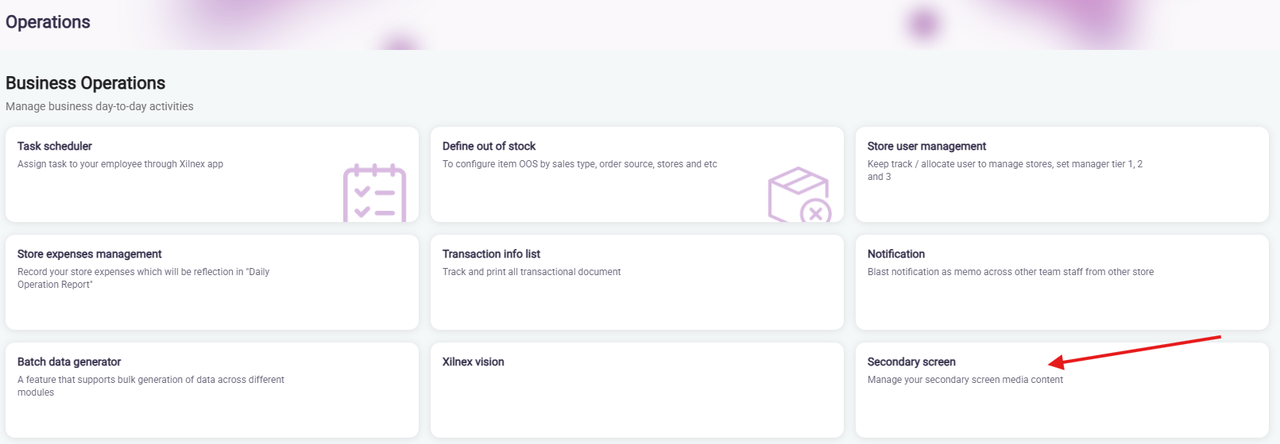
Key Features:
- Upload and manage all media centrally (Add New, Edit, Remove)
- Configure:
- Start time and end time
- Repeat settings (daily, weekly, or specific days like Monday, Tuesday)
- Assign media to specific outlets
- Limit 1 files 100 MB per upload
- 1 GB storage limit for each company (May request for more in the future)
Portal Behavior
- If a media file is edited in the portal, it will be treated as a new file (a new Media ID will be created), and the previous Media ID will be removed from the POS.
Supported File Formats
Images:
- PNG
- JPG
- JPEG
Videos:
- MP4
- WMV
- If unsupported formats are uploaded to the portal, an error message will be shown.
POS (Classic) Behavior
- Classic POS will automatically sync every 1 hour media from the portal. (Manual reset is available also by clicking the reset sync)
- No restart is required to receive the latest updates.
- When a media file is removed from the portal, it will also be automatically removed from the Classic POS.
- Media will auto-update and switch when new content is detected.
Important Changes
- Local media is no longer supported
- Only supported media files (PNG, JPG, JPEG, MP4, WMV) that are not uploaded via the portal will be automatically removed. Files in other formats (e.g., .MOV, .MKV) will not be affected.
Related Articles
POS Hold Bill Feature (Coming Soon!)
Hold Bill Feature – Retail POS 1. Overview The Hold Bill feature allows cashier to temporarily save an ongoing transaction and resume it later. ✅ Enabled by default for Retail POS Designed to improve queue efficiency Prevents loss of sales when ...POS Hold Bill Feature (Coming Soon!)
Hold Bill Feature – Retail POS 1. Overview The Hold Bill feature allows cashier to temporarily save an ongoing transaction and resume it later. ✅ Enabled by default for Retail POS Designed to improve queue efficiency Prevents loss of sales when ...How to Create a New Client in Classic POS
Overview This function is created to centralize and manage client information in ClassicPOS. The Client Form allows users to create, update, and maintain customer records, supporting the management of personal information, transaction history, ...Xilnex Tour Management
Overview The Tour Guide Module is designed to support tourism ticketing and commission tracking. It allows businesses to manage tour companies, tour guides, tour sessions, and commission payouts, with full integration into the POS for sales tracking. ...Understanding DuitNow QR Payment in ClassicPOS
Introduction This document introduces the DuitNow QR payment feature available in the Xilnex Retail POS, enabling merchants to accept payments conveniently through Malaysia's national QR payment standard. The integration of DuitNowQR simplifies the ...
Recent Articles
How to Cancel an E-Invoice on Dashboard
Overview Sometimes cancelling an e-invoice is inevitable. Common situations include: Incorrect buyer information (e.g., wrong name, TIN, or address) Transaction was voided or order was cancelled after invoice issuance Duplicate e-invoice issued for ...Guidelines to Set Up Promotion for Walk-in (System Default)
Guidelines to Set Up Promotion for Walk-in (System Default) Previously, the system did not have a specific indicator for walk-in customers. As a result, all promotion rules applied equally to all customer types, including walk-in customers. However, ...How to Update Client Record in Classic POS
Overview Updating client information is an essential function in ClassicPOS, enabling users to maintain and update existing client records. This ensures that client data remains accurate and up to date for daily operations, reporting, and effective ...How to Create a New Client in Classic POS
Overview This function is created to centralize and manage client information in ClassicPOS. The Client Form allows users to create, update, and maintain customer records, supporting the management of personal information, transaction history, ...POS Hold Bill Feature (Coming Soon!)
Hold Bill Feature – Retail POS 1. Overview The Hold Bill feature allows cashier to temporarily save an ongoing transaction and resume it later. ✅ Enabled by default for Retail POS Designed to improve queue efficiency Prevents loss of sales when ...
Popular Articles
Basic - How to create a voucher-coupon
Voucher and coupon definition Voucher can be generated in bulk and can be used once Coupon can only be created one at a time (reusable code) and can be use multiple times Pre-voucher / coupon setup There are 2 things need to be prepared before we can ...Understanding DuitNow QR Payment in ClassicPOS
Introduction This document introduces the DuitNow QR payment feature available in the Xilnex Retail POS, enabling merchants to accept payments conveniently through Malaysia's national QR payment standard. The integration of DuitNowQR simplifies the ...Basic - How to change custom cost to another branch that don’t have custom cost
Change custom cost to another branch that don’t have custom cost 1. Get the item list from the location with custom cost (Item Code, Name, Custom Cost) 2. Make sure the Show Location Price are selected 3. Export the item list in Excel 4. The file ...Intermediate - How to Bill & Post to Sales from Transfer Note
1.0 Purpose A bill is required from transfer note when an inventory transfer involves financial transactions, cost allocation, or compliance with tax and accounting regulations. It is used when stock is moved between outlets that operate as separate ...Basic - How to enable E-Receipt Portal and QR Code Setup on Printing format in Xilnex
Enable E-Receipt Portal Enable the E-receipt functionality Once Enabled, you will be getting the E-Receipt portal link Continue under Theme & Styling, enabled for the E-Invoice (LHDN) You can customize the look and feel of the E-Receipt portal ...