Xilnex SMS Marketing Guide

Xilnex SMS Marketing Guide

Pre-requisite

  • Xilnex Portal Account
  • SMS account
    • You may request an SMS account from Xilnex team (Topup required)

Setting Up

  1. Go to Xilnex Portal>Customer Engagement>Customer Engagement Platform
  1. Go to SMS Marketing
  2. For 1st time setup, go to Integration account>Click Edit to add your SMS account
  1. Fill in your SMS account information in the required fields:
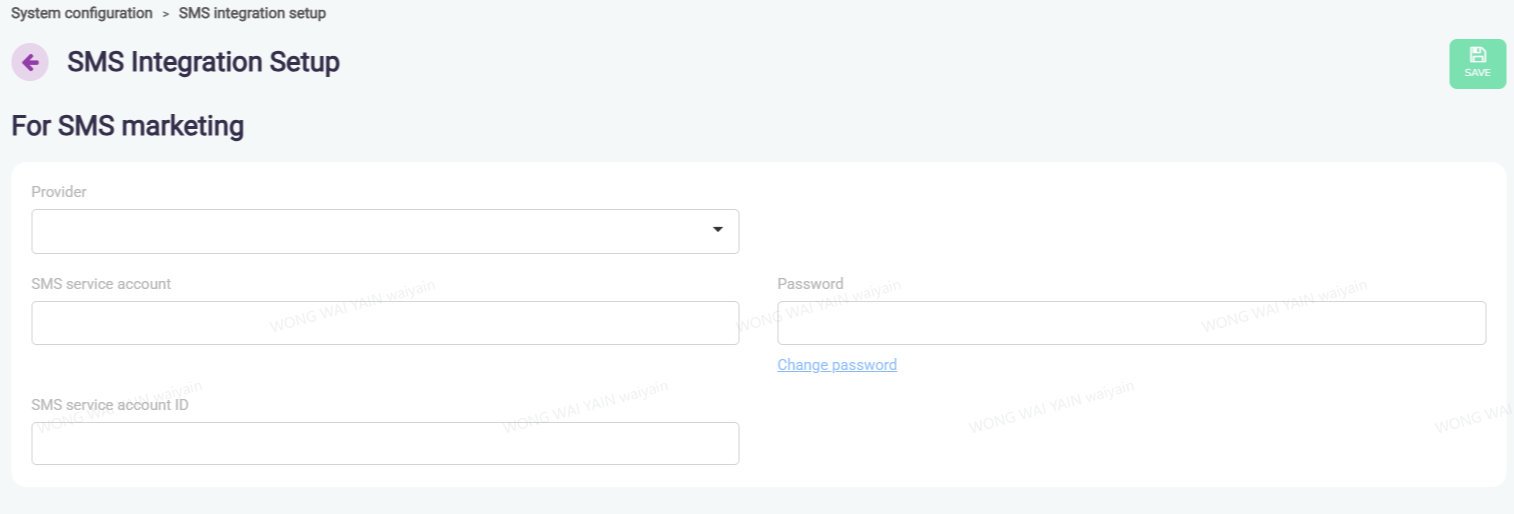
  • Fill in your SMS account username and password and service ID
    • For those who created the account from Xilnex billing team, the SMS service account ID by default is WEB001
    • If you are open account with Macrokiosk directly, please contact Macrokiosk for Service ID details
  1. Once setup your account, you may go to SMS Marketing and start blast your first campaign.

Create SMS Campaign/Send SMS

  1. Go to SMS Marketing
  2. Click New
  1. Fill in the required fields and the SMS content that you want to send
    1. You may add the attribute into the content, system will auto populate the info into the attributes added. (Only the user exist in Xilnex database)
    2. Please also take note on the additional dos and don'ts stated below

  1. Select Recipients:
  • Existing members type
  • Direct Import client contact number (Make sure the mobile number you import follows this format: 6012xxxxxxx)
  1. Set Send Time
  • Send now or Schedule a specific date and time

  1. Preview
  • Select "Preview" button on the right, it will show the preview message in the phone template:
  1. Save and the campaign is created!
    • Related Articles

    • Loyalty News Setup Guide

      Login in to Xilnex Portal, Go to https://portal.xilnex.com/CustomerEngagement?tab=CRM Select Loyalty News Management To add, click Add news To edit, just double click the existing news Fill in News Details Display Priority (can leave blank) Set this ...
    • Loyalty Referral Setup Guide

      1. Login https://portal.xilnex.com/ 2. Go to Customer Engagement on the sidebar 3. Under Loyalty Application, select Referral Setup. 4. Referral Campaign Details - Upload the campaign image (it will display accordingly in App or Lite) - Fill in ...
    • Stamp Achievements Setup Guide

      1.0 Sales Achievement Setup Sales achievement refers to the stamp campaign that mainly based on Sales Amount. For example: Purchase above RM10 and get 1 stamp Go to portal https://portal.xilnex.com/ Go to Customer Engagement>Customer relation ...
    • Setting Up Xilnex Loyalty Lite

      How to Setup Xilnex Loyalty Lite 1. Accessing Loyalty Lite Login to Xilnex Portal Navigate to Customer Engagement → Loyalty Application → Loyalty Lite Enable Loyalty Lite 2. Configure Custom Domain Set your preferred Loyalty Site Name. Click Verify ...
    • How to Set Popup News Display For Loyalty Lite

      Loyalty Lite has a feature to display Popup News. Popup news window will prompt whenever user login to Loylaty Lite Homepage. Log in to Xilnex Portal Go to: https://portal.xilnex.com/CustomerEngagement?tab=CRM Navigate to Loyalty News Management ...
    • Recent Articles

    • Xilnex SMS Marketing Guide

      Pre-requisite Xilnex Portal Account SMS account You may request an SMS account from Xilnex team (Topup required) Setting Up Go to Xilnex Portal>Customer Engagement>Customer Engagement Platform Go to SMS Marketing For 1st time setup, go to Integration ...
    • Stamp Achievements Setup Guide

      1.0 Sales Achievement Setup Sales achievement refers to the stamp campaign that mainly based on Sales Amount. For example: Purchase above RM10 and get 1 stamp Go to portal https://portal.xilnex.com/ Go to Customer Engagement>Customer relation ...
    • How to Set Popup News Display For Loyalty Lite

      Loyalty Lite has a feature to display Popup News. Popup news window will prompt whenever user login to Loylaty Lite Homepage. Log in to Xilnex Portal Go to: https://portal.xilnex.com/CustomerEngagement?tab=CRM Navigate to Loyalty News Management ...
    • How to Create Loyalty News Tag

      This feature is used for Loyalty App with a dedicated news display section, or using Loyalty Lite with popup news enabled. News tags help you categorize your announcements so each segment displays the correct content. Log in to Xilnex Portal Go to: ...
    • Loyalty News Setup Guide

      Login in to Xilnex Portal, Go to https://portal.xilnex.com/CustomerEngagement?tab=CRM Select Loyalty News Management To add, click Add news To edit, just double click the existing news Fill in News Details Display Priority (can leave blank) Set this ...
    • Popular Articles

    • Basic - How to create a voucher-coupon

      Voucher and coupon definition Voucher can be generated in bulk and can be used once Coupon can only be created one at a time (reusable code) and can be use multiple times Pre-voucher / coupon setup There are 2 things need to be prepared before we can ...
    • Understanding DuitNow QR Payment in ClassicPOS

      Introduction This document introduces the DuitNow QR payment feature available in the Xilnex Retail POS, enabling merchants to accept payments conveniently through Malaysia's national QR payment standard. The integration of DuitNowQR simplifies the ...
    • Basic - How to change custom cost to another branch that don’t have custom cost

      Change custom cost to another branch that don’t have custom cost 1. Get the item list from the location with custom cost (Item Code, Name, Custom Cost) 2. Make sure the Show Location Price are selected 3. Export the item list in Excel 4. The file ...
    • Intermediate - How to Bill & Post to Sales from Transfer Note

      1.0 Purpose A bill is required from transfer note when an inventory transfer involves financial transactions, cost allocation, or compliance with tax and accounting regulations. It is used when stock is moved between outlets that operate as separate ...
    • Basic - How to enable E-Receipt Portal and QR Code Setup on Printing format in Xilnex

      Enable E-Receipt Portal Enable the E-receipt functionality Once Enabled, you will be getting the E-Receipt portal link Continue under Theme & Styling, enabled for the E-Invoice (LHDN) You can customize the look and feel of the E-Receipt portal ...