Updating Username Information in Xilnex Portal

Updating Username Information in Xilnex Portal

How to Update/Edit a Username in Xilnex Portal

1. Go to [System Configuration] from the menu bar.

2. Select [User Management].

3. Choose [User List].

4. Locate the username from the list using search or filters.

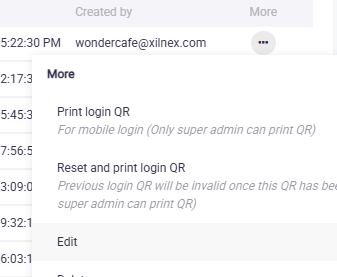
5. Double-click the username or click [EDIT] to open the user’s details.
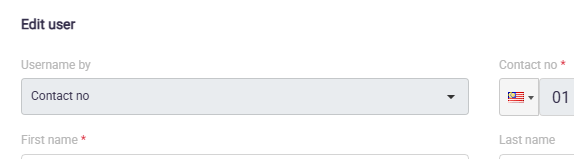
6. An 'Edit User' form will be opened. Find the username fields and update them with the new value.

7. Click [SAVE] to confirm the changes, and check that the updated username appears in the users list.
    • Related Articles

    • Updating Store Details in Xilnex Portal

      How to Update Store Details in Xilnex Portal 1. To update store details, go to [System Configuration] in the menu bar and select [Store Management]. 2. Double-click the store or select more and click [EDIT]. 3. The existing store information will ...
    • Creating a New Username in Xilnex Portal

      How to Create a New Username in Xilnex Portal A new username can only be created by an existing user within the company. (Rest assured, permission settings are in place to control who has the privilege to create accounts, preventing any unauthorized ...
    • Importing Store Details in Xilnex Portal

      Overview The Import Store Details in Xilnex Portal is a function that allows users to import store data in bulk using CSV files. Users have the option to import the store details either With updating the existing records or Without updating the ...
    • Downloading Store Sample CSV Template File in Xilnex Portal

      Overview The Download Store Sample CSV Template File feature in Store Management Import and Log allows staff to download a sample template, containing all necessary fields and proper format for importing data into the system. Preparing imported files ...
    • Creating a New Store in Xilnex Portal

      How to Create a New Store in Xilnex Portal To create, edit, or delete a store, go to [System Configuration] in the menu bar and select [Store Management]. The system will display a list of stores accessible to your account. Create a New Store 1. ...
    • Recent Articles

    • Downloading Store Sample CSV Template File in Xilnex Portal

      Overview The Download Store Sample CSV Template File feature in Store Management Import and Log allows staff to download a sample template, containing all necessary fields and proper format for importing data into the system. Preparing imported files ...
    • Importing Store Details in Xilnex Portal

      Overview The Import Store Details in Xilnex Portal is a function that allows users to import store data in bulk using CSV files. Users have the option to import the store details either With updating the existing records or Without updating the ...
    • Centralized Secondary Screen Media

      Secondary Screen Guidelines Current Setup (Local Media) Currently, the secondary screen relies on a local folder to display media on the POS. Xilnex POS automatically creates a folder named "SecondaryMonitorMedia" on the desktop, or users can ...
    • LiveOrder Dynamic QR - Setup Guide

      What is Dynamic QR? Dynamic QR generates a unique, per-session QR code at point of order — typically printed when a table is opened. The customer scans it to place or continues an order tied to that specific table session. Unlike Static QR ...
    • LiveKiosk Enablement - User Guide

      Overview LiveKiosk is a web-based self-ordering kiosk that runs on the same engine as LiveOrder. It allows customers to place orders independently via a kiosk device — available on Windows (via Classic POS) or Android (via the LiveKiosk APK). All ...
    • Popular Articles

    • Basic - How to create a voucher-coupon

      Voucher and coupon definition Voucher can be generated in bulk and can be used once Coupon can only be created one at a time (reusable code) and can be use multiple times Pre-voucher / coupon setup There are 2 things need to be prepared before we can ...
    • Understanding DuitNow QR Payment in ClassicPOS

      Introduction This document introduces the DuitNow QR payment feature available in the Xilnex Retail POS, enabling merchants to accept payments conveniently through Malaysia's national QR payment standard. The integration of DuitNowQR simplifies the ...
    • Basic - How to change custom cost to another branch that don’t have custom cost

      Change custom cost to another branch that don’t have custom cost 1. Get the item list from the location with custom cost (Item Code, Name, Custom Cost) 2. Make sure the Show Location Price are selected 3. Export the item list in Excel 4. The file ...
    • Intermediate - How to Bill & Post to Sales from Transfer Note

      1.0 Purpose A bill is required from transfer note when an inventory transfer involves financial transactions, cost allocation, or compliance with tax and accounting regulations. It is used when stock is moved between outlets that operate as separate ...
    • Basic - How to enable E-Receipt Portal and QR Code Setup on Printing format in Xilnex

      Enable E-Receipt Portal Enable the E-receipt functionality Once Enabled, you will be getting the E-Receipt portal link Continue under Theme & Styling, enabled for the E-Invoice (LHDN) You can customize the look and feel of the E-Receipt portal ...